Azure Virtual Desktop (AVD) has a new feature in public preview called context based redirections. Read about it here on Microsoft Learn. The instruction on Microsoft Learn are a rough guidance. I try to elaborate on the feature in this blog and try to give extensive instructions with screenshots.
There are 4 options for context based redirections:
- Clipboard redirection
- Drive redirection
- Printer redirection
- USB redirection
Of course, these features were already widely available in other products but it is nice to see that also came to Azure Virtual Desktop.
I will walk through the configuration of this feature and show some examples. There are 2 parts to this configuration. Entra Conditional Access and the configuration of the Azure Virtual Desktop Host pool itself.
Let’s start with Entra Conditional Access.
Entra Conditional Access
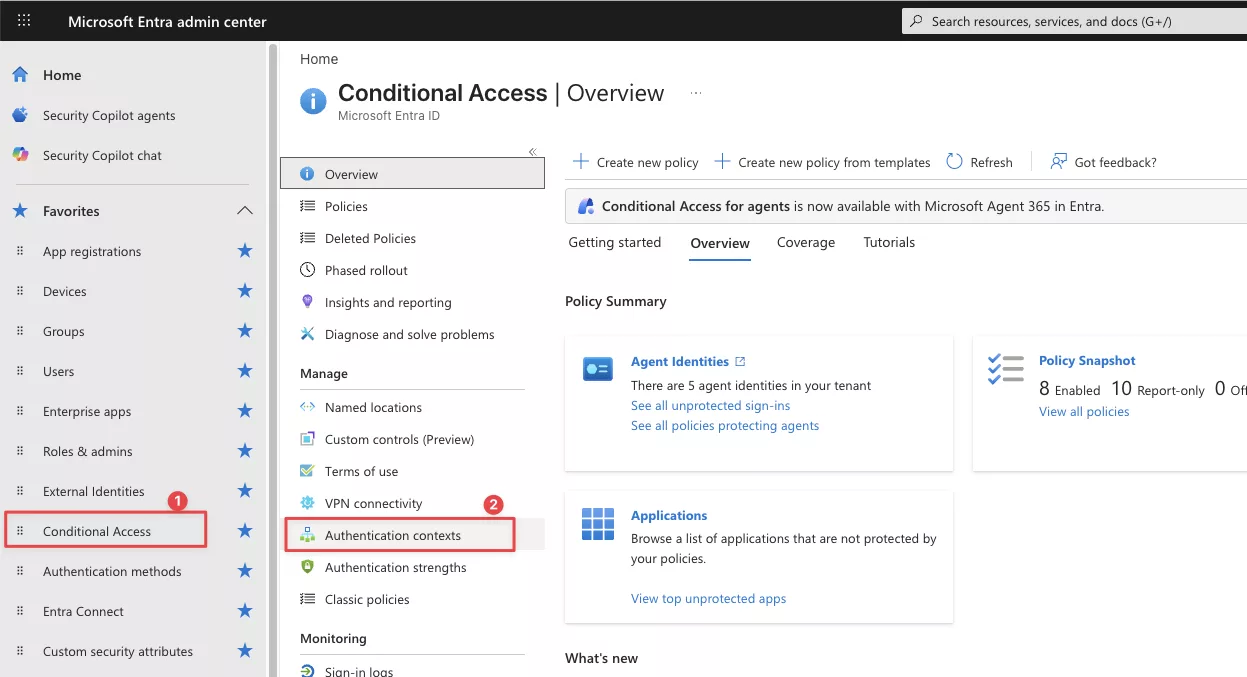
Firstly, we must add an authentication context in conditional access.
Go to Entra > Conditional Access > Authentication Contexts:
After that, create a new Authentication Context, give it a name, description, id and publish it to apps:
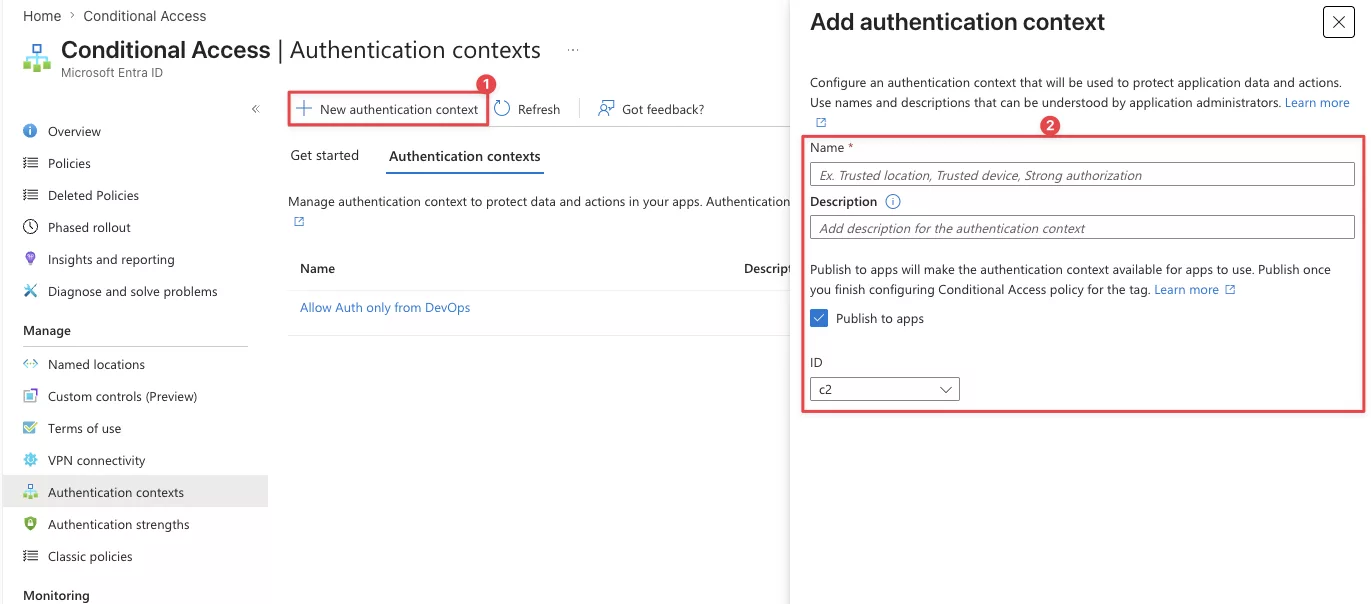
After you created the new authentication context we must create a Conditional Access policy which uses that authentication context.
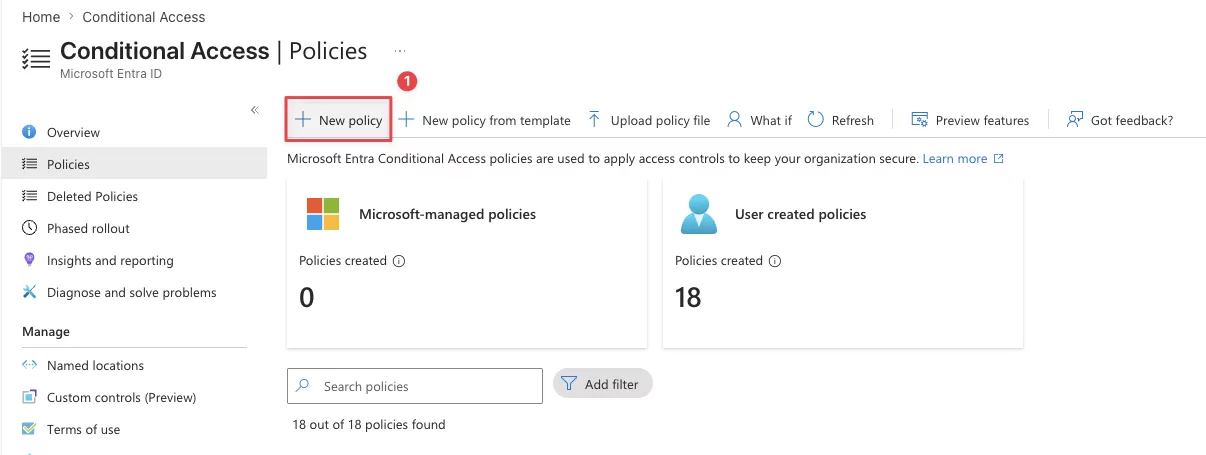
Go to Conditional Access, create a new policy:
In this new conditional access policy you must set the target resource to an authentication context in stead of resources (formerly known as cloud apps). In addition, you will see your newly created authentication context here:
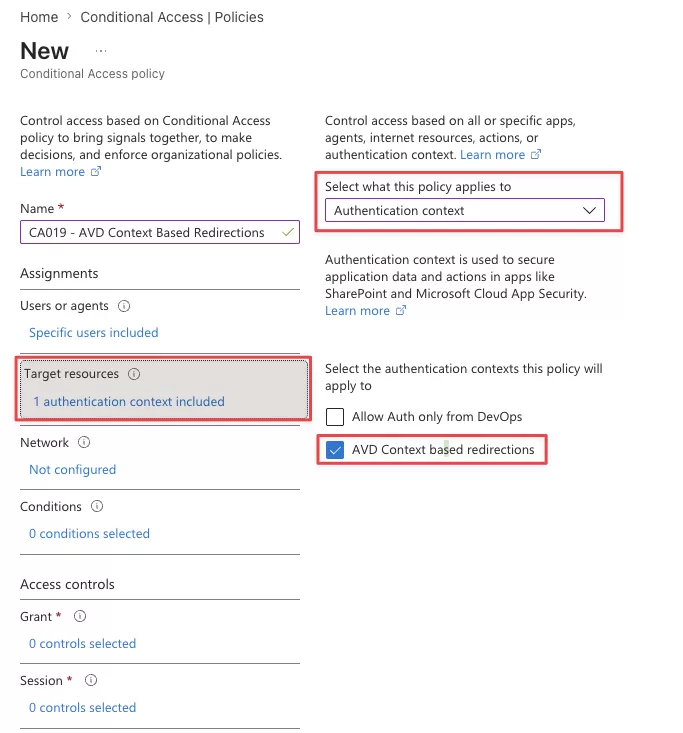
Select that authentication context and set the Access Controls to “Require Device to marked as compliant”:
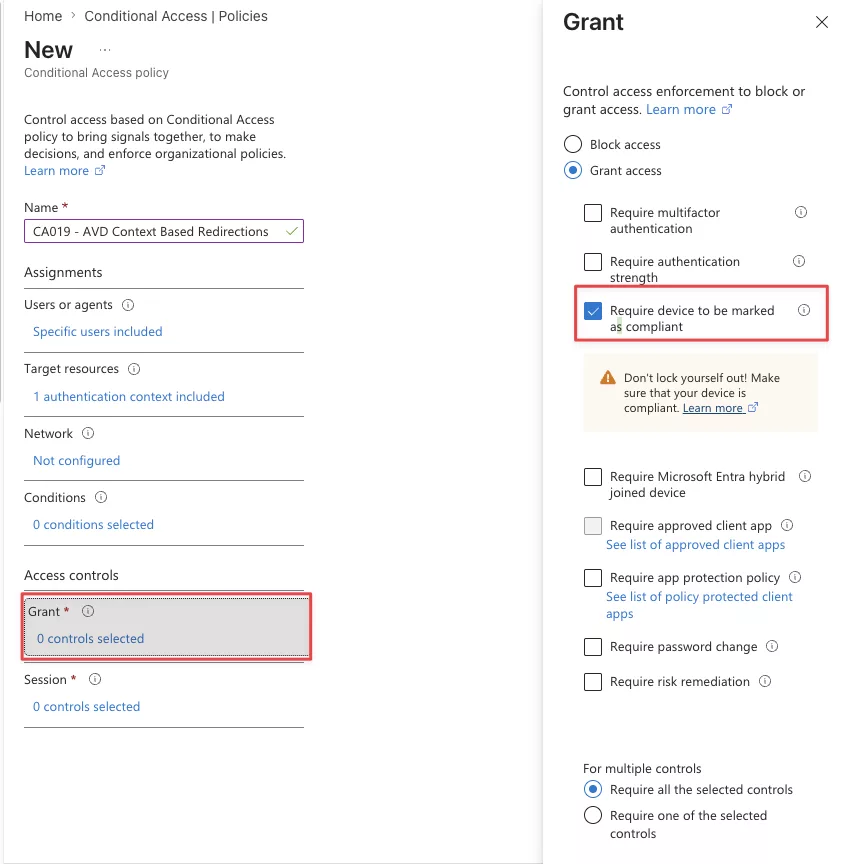
After that, you should have configured Conditional Access appropriately.
Azure Virtual Desktop Hostpool
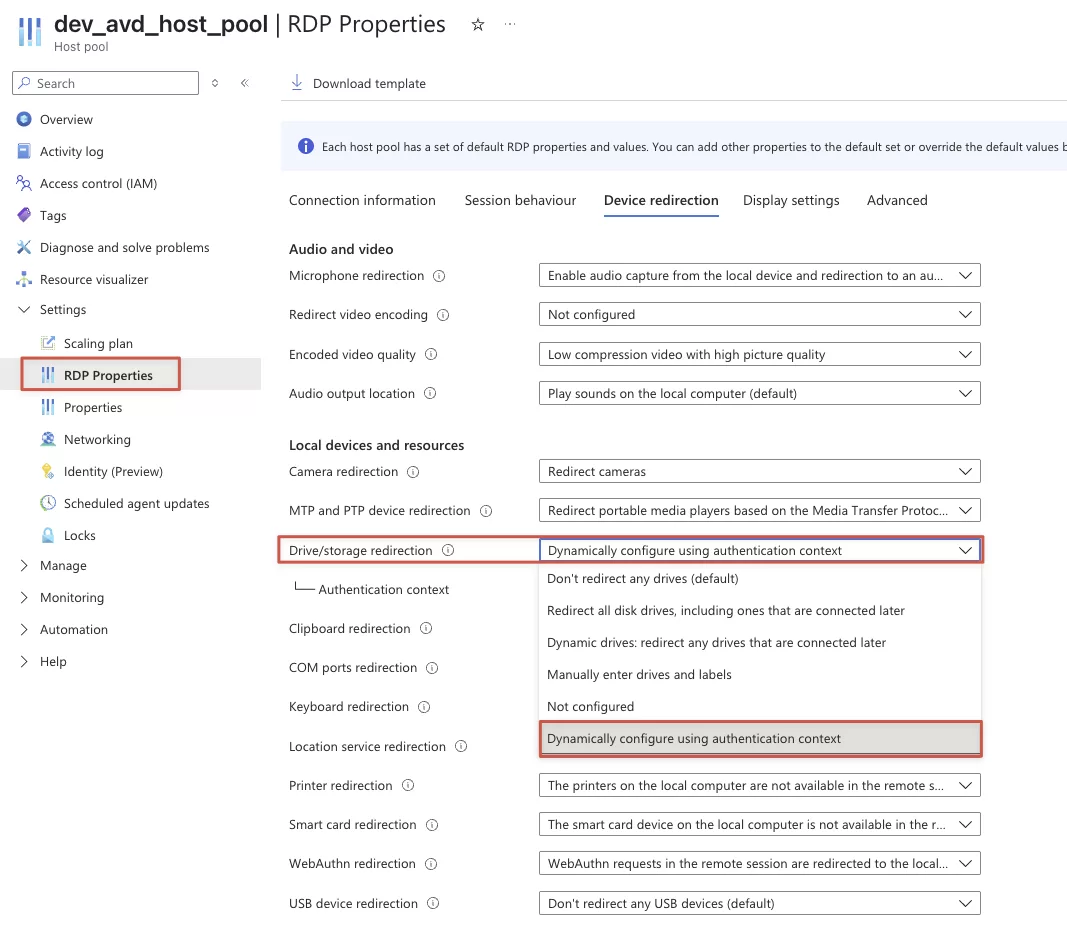
The Azure Virtual Desktop hostpool is configured very easily. Use these steps to configure the hostpool.
Go to your Azure Virtual Desktop Hostpool and configure the RDP properties:
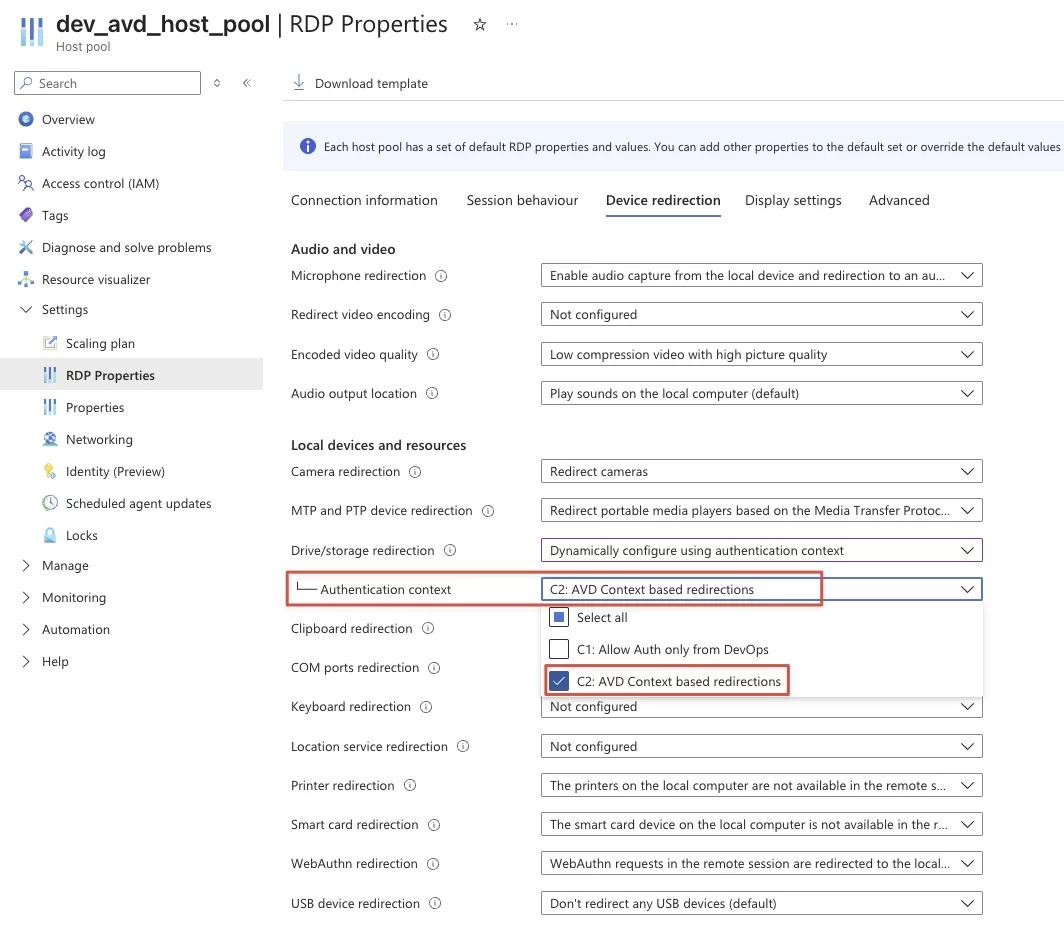
After that, select the “AVD Context based redirections”:
Demo AVD context based redirections
I use the Windows App to log on to this Azure Virtual Desktop hostpool.
(I am logging on from a non-compliant device and so the redirected drivers shouldn’t work)
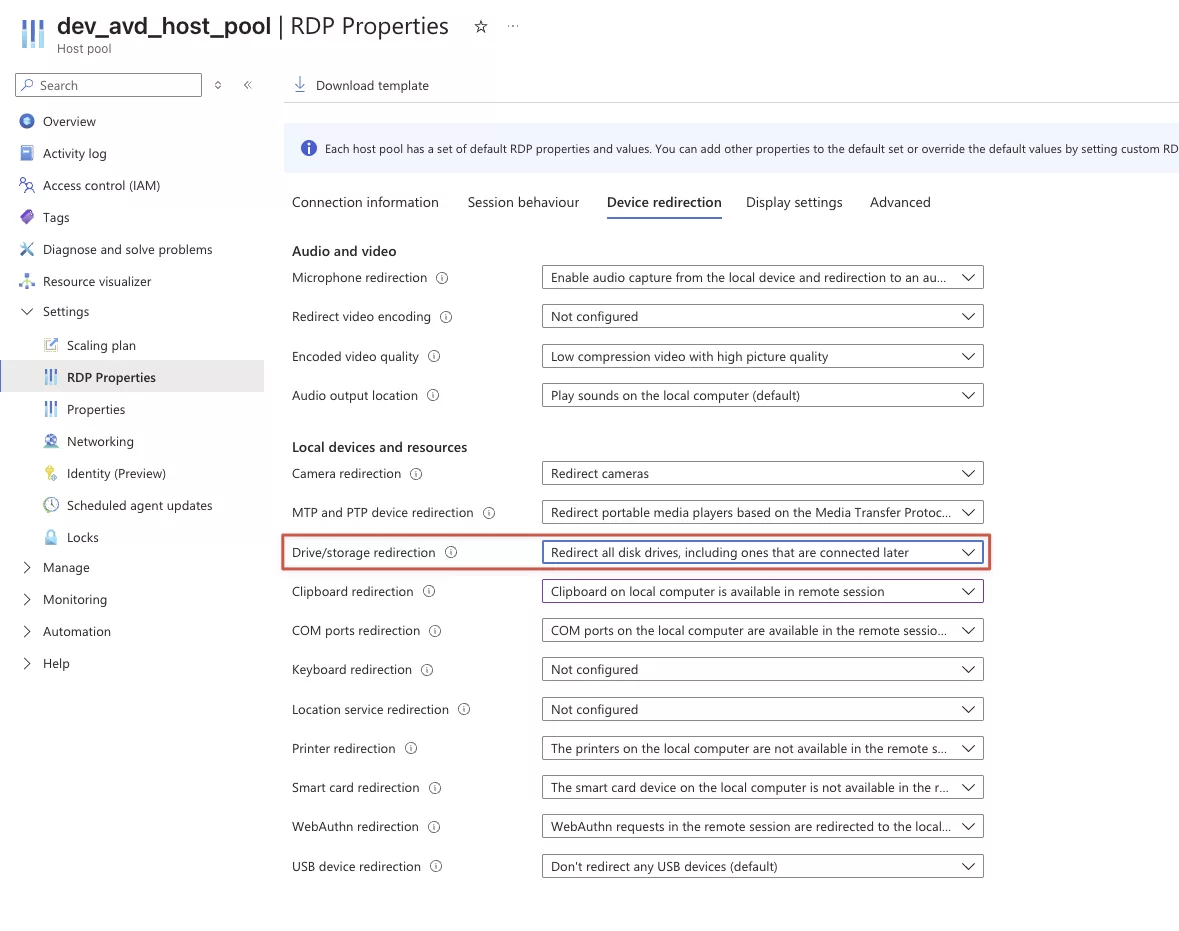
Let’s see if it actually works, I have configured my Downloads folder to be redirected:
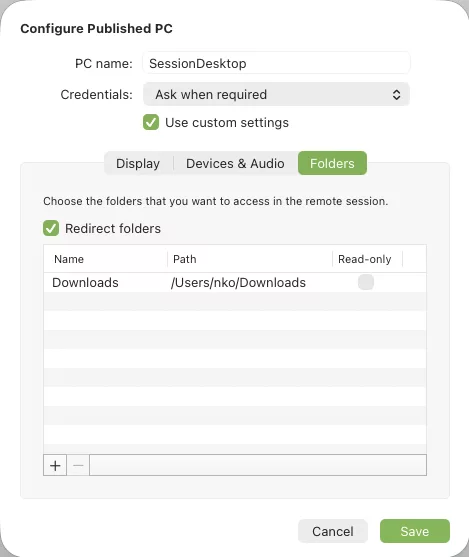
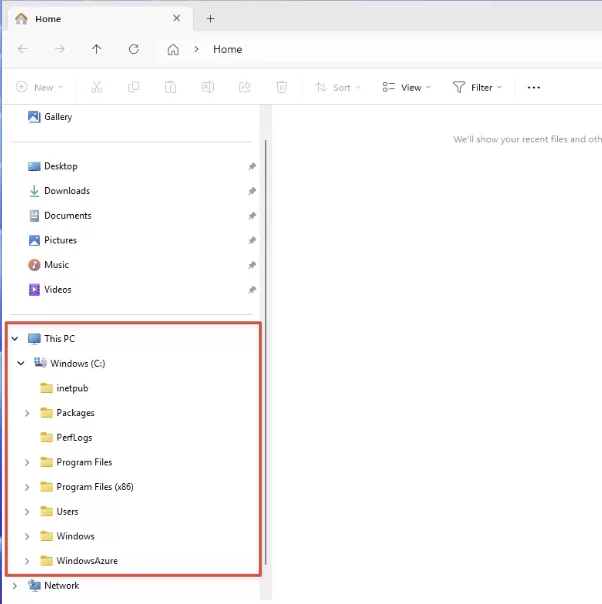
No drive is available:
And when I allow redirections from non-compliant devices:
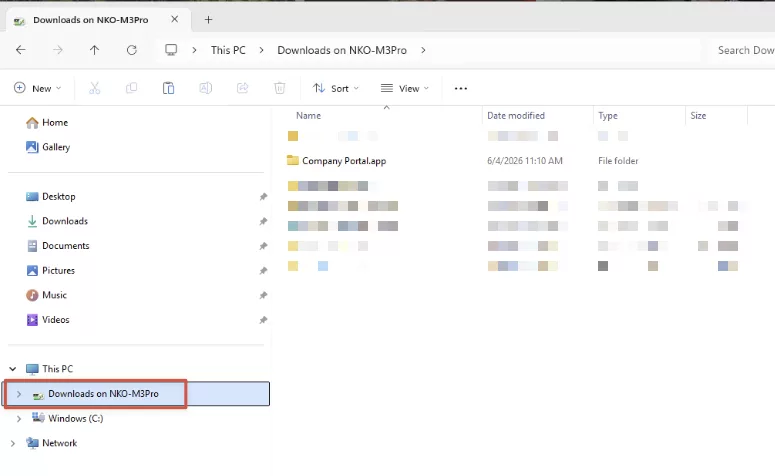
The drive is available again:
This works pretty instantaneous. You don’t have to sign out, you can just reconnect to your existing session. When you update the RDP properties on the hostpool, it’s applied immediately. Pretty awesome!
If you need to update Conditional Access it will probably take a while.