My homelab also contains a SuperMicro server that has an IPMI interface. I was tired of using the web interface to interact with that so I searched for an existing PowerShell module that can interact with the IPMI interface. I only found a module which is available on Windows, it is called: “PcsvDevice“. My friend Jeroen Tielen also wrote a post about it. But, the thing is, I use a mac. So, this is not an option.
I discovered that the IPMI interface supports Redfish API. This is a REST API interface. Allright, we can work with this. So, I set out to create my own SuperMicro IPMI PowerShell module.
Installing the module:
The module is available in the PowerShell gallery. You can find it here:
https://www.powershellgallery.com/packages/PSSupermicroIPMI/1.0.0
Use this code to install it:
Install-Module -Name PSSupermicroIPMI
After that, import the module and use get-command to list the CMDlets:

Using the Supermicro IPMI PowerShell Module
Authentication:
You might have noticed that there is not an authentication CMDlet. That is because the REST API uses basic authentication and I had to come up with something to not have the password in memory.
The module uses 2 helper functions to achieve that. The first one, Set-AuthHeaders, uses a PSCredential object to store the username + password safely. The second one, New-AuthHeader, returns an authentication header and then nullifies the password object to not have it in memory. This means that for each REST API call a new header is created so the password never lingers in memory. This is the solution I think is best. If you have a better one, please let me know!
So, how do you actually use the module?
Well, when you run Get-SupermicroIPMIinfo, this is the result.
If the authentication objects are empty, it first ask for your IP Address and if your username is different to ADMIN, you must specify it. Otherwise, it will use ADMIN. After that, it ask for your password.
Lastly, it runs the CMDlet “Get-SupermicroIPMIinfo”, and this is the result:

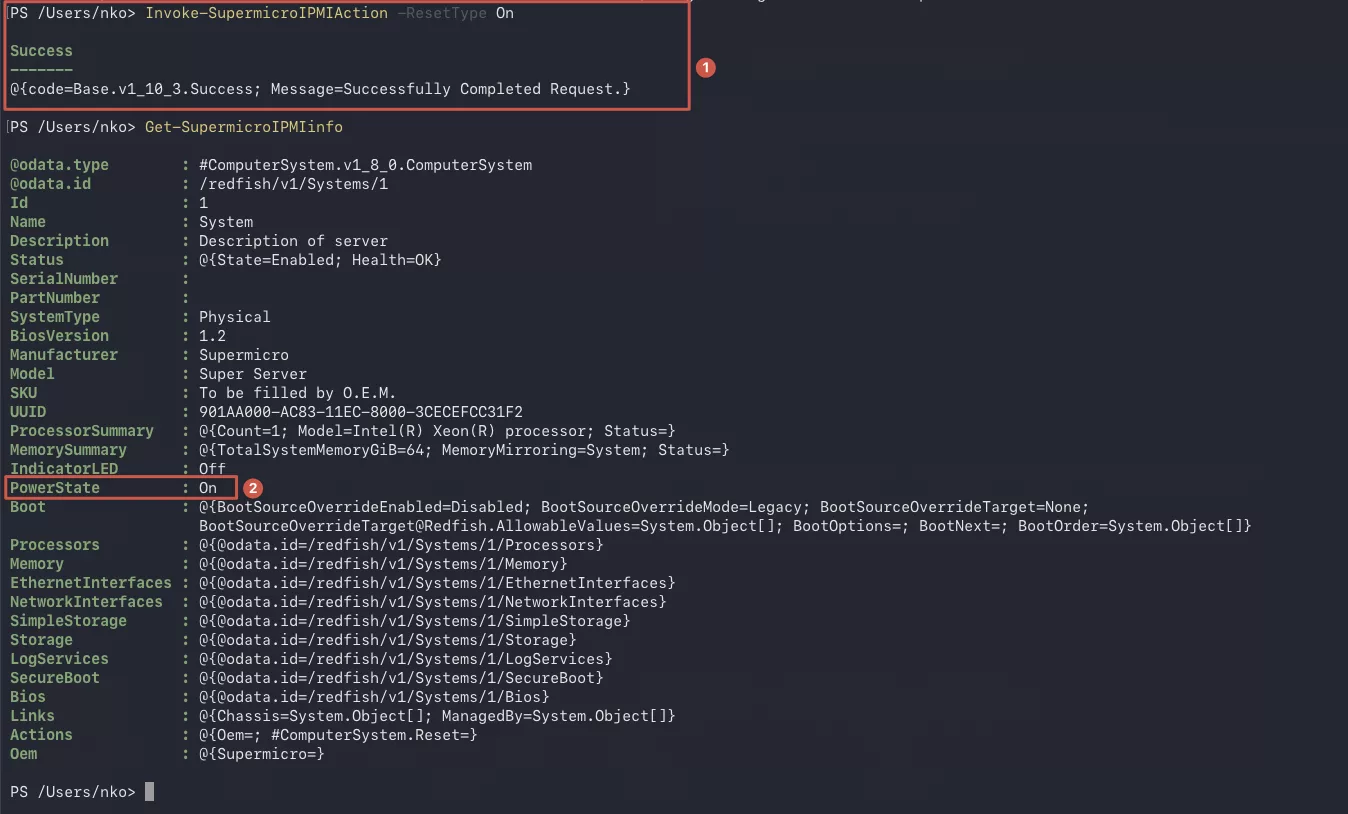
To finally start the server you use this command:
Invoke-SupermicroIPMIAction -ResetType On
It has the options to: “On”, “ForceRestart”, “GracefulRestart”, “ForceOff”, “GracefulShutdown”
That is it, for now, for the Supermicro IPMI powershell module!
Keep automating :-)!