New Post. This time a script I wrote for a customer to figure out how to get the last logon for a Azure Virtual Desktop (AVD) user.
Prerequisites
You must have the diagnostics settings for an Azure Virtual Desktop configured. Check out Microsoft Learn on how to do so.
Of course, you must already have Azure Virtual Desktop deployed but I don’t think you haven’t otherwise you wouldn’t be reading this post.
Lastly, we also leverage the Az.Accounts PowerShell module to get an Access Token for Microsoft Azure.
The script to get the last logon for AVD
This is the script that gets the last logon for an Azure Virtual Desktop user:
Connect-AzAccount

$AccessToken = (Get-AzAccessToken -ResourceUrl "https://api.loganalytics.io/").token | ConvertFrom-SecureString -AsPlainText

$workspaceId = "YOUR WORKSPACE ID"
$url = "https://api.loganalytics.io/v1/workspaces/$workspaceId/query"

$headers = @{
    "Authorization" = "Bearer $AccessToken"
    "Content-Type"  = "application/json"
}

$Query = "WVDConnections | where TimeGenerated >= ago(90d)"

$body = '{"query":"' + $Query + '"}'

$Result = Invoke-RestMethod -Method Post -Uri $url -Headers $headers -Body $body

function Convert-TableToObjects {
    param($table)

    $cols = $table.columns.name
    # Handle duplicate columns by appending a suffix
    $colCounts = @{}
    $uniqueCols = foreach ($col in $cols) {
        if ($colCounts.ContainsKey($col)) {
            $colCounts[$col]++
            "$col$($colCounts[$col])"
        }
        else {
            $colCounts[$col] = 1
            $col
        }
    }

    $objects = foreach ($row in $table.rows) {
        $props = @{}
        for ($i = 0; $i -lt $uniqueCols.Count; $i++) {
            $props[$uniqueCols[$i]] = $row[$i]
        }
        [pscustomobject]$props
    }
    return $objects
}

$Objects = Convert-TableToObjects -table $Result.tables

$Objects[0]
Firstly, the script connect to Microsoft Azure using this command:
Connect-AzAccount
After that, you must select your subscription in the command prompt. Make sure you select the subscription where your Log Analytics Workspace lives.
Then, we get the access token from the Log Analytics API to be able to do query via the REST API method. That is done with this part of the code. The interesting thing is that we do a “POST” method instead of a GET method. I was struggling with this for a bit since I thought I was getting the information from the Log Analytics workspace. Instead, you are posting the query to the API and then returning the information.
$AccessToken = (Get-AzAccessToken -ResourceUrl "https://api.loganalytics.io/").token | ConvertFrom-SecureString -AsPlainText

$workspaceId = "YOUR WORKSPACE ID"
$url = "https://api.loganalytics.io/v1/workspaces/$workspaceId/query"

$headers = @{
    "Authorization" = "Bearer $AccessToken"
    "Content-Type"  = "application/json"
}

$Query = "WVDConnections | where TimeGenerated >= ago(90d)"

$body = '{"query":"' + $Query + '"}'

$Result = Invoke-RestMethod -Method Post -Uri $url -Headers $headers -Body $body
This query returns the latest logons for the last 90 days. Make sure your retention of the Log Analytics data is also set to 90 days otherwise you won’t get the correct data.
When you run this script, this is the result:

As you can see, the data is not properly sorted in a PSCustomObject.
When you select the $Result.tables.columns, only these objects appear:

We mis the information that correlates to all the session information in $Result.tables.rows. So, I asked AI to write a function that correlates the data from $Result.tables.columns and $Result.tables.rows, that is where the last part of the script comes in.
That correlates all the data and gives us this result:
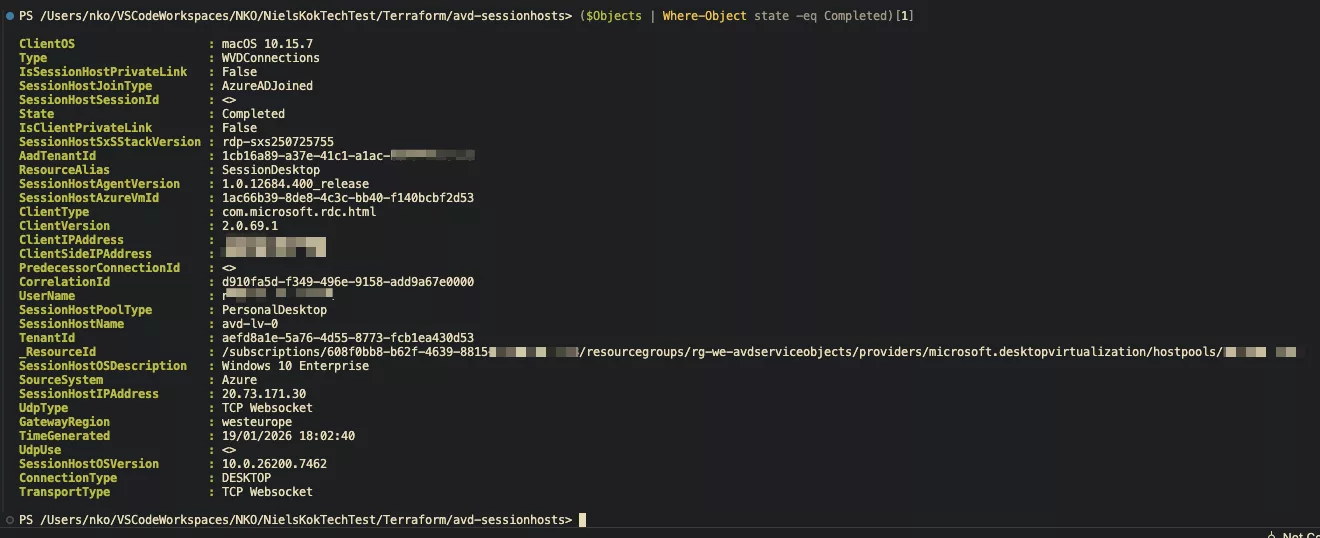
That how you can get all latest logons for AVD in a proper PSCustomObject :-).
Happy automating!