This post is dedicated on how to automate an AVD hybrid deployment. I use Hyper V as my hypervisor OS where the AVD hybrid machines reside. I use PowerShell to create the machines and install the Arc agent and join them to the AVD hostpool.
To further clarify, I use PowerShell to configure the AVD hybrid machines via the hypervisor OS, not touching the machines themselves. Otherwise, you would still need to touch every machine. Our goal is automating that.
I don’t cover how to setup AVD hybrid and all its resources. My friend Dieter Kempeneers covered that already. You can find it here. I used it to setup my initial environment also. Also, your machine must be already Entra or Active Directory Domain joined. I do cover how to automate the Entra join later in the post.
The difference between Dieters post and mine is that I want to automate the windows 11 machine creation, the arc agent install, and the AVD agent onboarding.
Preparation
During testing, when creating the Azure Arc onboarding script, I used the “Authenticate machine automatically” instead:
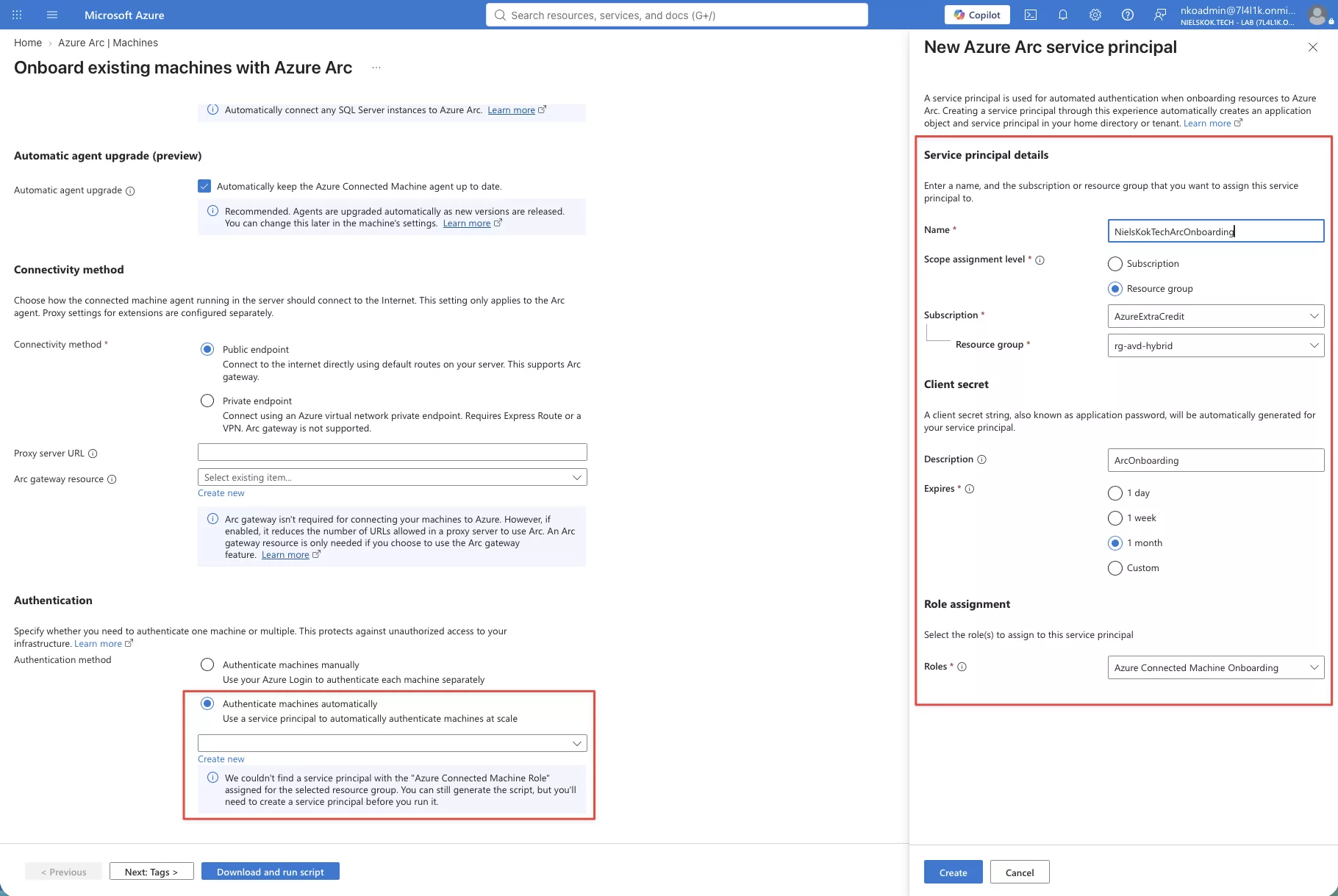
When creating the client secret the wizard ask you to download the secret. I clicked “yes” to see what happens and basically it downloads a txt file with your credentials:
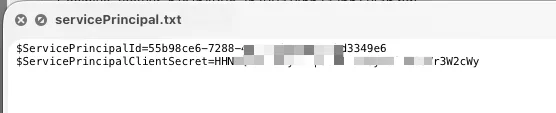
Microsoft, please remove this. Please redirect the user to the Entra App registration in a new tab and show the secret value there. People will forget this file and this is probably sitting in downloads folders everywhere.
Also, when you open the generated script, it suggests that you must hardcode the secret there:
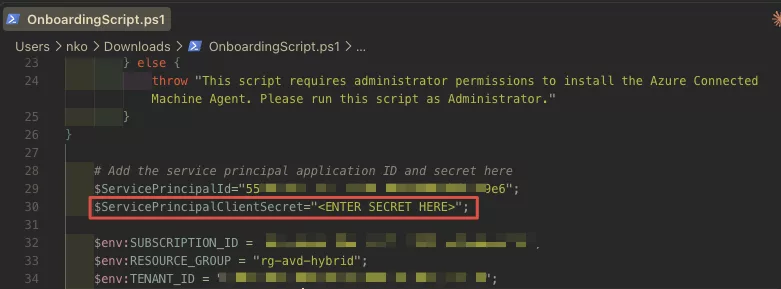
Could you please change this into a “Read-Host” or something similar. It is not oké to hardcode credentials. We must lead by example.
In my PowerShell script to install the Arc agent and the AVD agent I choose to pass an Access Token to the script. That way you never have a lingering credential object in a script, in memory or anywhere else you don’t want it. An access token expires always to a maximum of 24 hours.
Creating the Windows 11 virtual machines
I choose to create the virtual machines on my Hyper-V host with a script, an iso, and an answer file. I use Johan Arwidmark’s method to create the answer file. Read about it here. It makes sure that when the VM boots Windows gets installed and the blog also states how you can automatically join it to Microsoft Entra. At the bottom of the blog there is also a link where you can create the answer file via a config generator which makes life easy.
Yes, I put the local administrator credentials in the answer file. But after I create the machine, it get’s Domain joined or Entra joined where a LAPS policy rotates the local administrator password. So, I think this is acceptable. Especially for a homelab environment.
After that, I run this script to provision the virtual machines:
$Random = Get-Random -Minimum 1000 -Maximum 9999

# Variables
$VMName        = "Windows11-$($Random)"
$VMPath        = "C:\HyperV"
$ISOPath       = "C:\ISO\Windows_11_x64_25H2_Automated.iso"
$VHDSizeBytes  = 60GB
$MemoryBytes   = 4GB
$CPUCount      = 2
$SwitchName    = "VSWITCH NAME"   # Change to your vSwitch name

Write-Host "Create VM (Generation 2 = UEFI, use Gen 1 for older OSes)"
New-VM -Name $VMName `
       -Path $VMPath `
       -Generation 2 `
       -MemoryStartupBytes $MemoryBytes `
       -SwitchName $SwitchName

Write-Host "Set VLAN ID"
Set-VMNetworkAdapterVlan -VMName $VMName -Access -VlanId 40

Write-Host "Create and attach a new VHD"
$VHDPath = "$VMPath\$VMName\$VMName.vhdx"
New-VHD -Path $VHDPath -SizeBytes $VHDSizeBytes -Dynamic
Add-VMHardDiskDrive -VMName $VMName -Path $VHDPath

Write-Host "Attach the ISO"
$DVDDrive = Add-VMDvdDrive -VMName $VMName -Path $ISOPath -Passthru

Write-Host "Set boot order: DVD first, then HDD (Gen 2 only)"
$HDD = Get-VMHardDiskDrive -VMName $VMName
Set-VMFirmware -VMName $VMName -BootOrder $DVDDrive, $HDD

Write-Host "Enable TPM (requires Key Protector first)"
Set-VMKeyProtector -VMName $VMName -NewLocalKeyProtector
Enable-VMTPM -VMName $VMName

Write-Host "Enable Secure Boot"
Set-VMFirmware -VMName $VMName -EnableSecureBoot On -SecureBootTemplate MicrosoftWindows

Write-Host "Configure CPU"
Set-VMProcessor -VMName $VMName -Count $CPUCount

Write-Host "Start the VM"
Start-VM -VMName $VMName

Start-Sleep 1

Stop-VM -VMName $VMName -force

Start-Sleep 1

Start-VM -VMName $VMName

Write-Host "VM '$VMName' created and started." -ForegroundColor Green
I stop/start the machine twice, I had to do that otherwise the unattended install wouldn’t start. I haven’t troubleshooted it yet. This script allows me to create a Windows 11 machine and install it in minutes. You could add a foreach loop (or a foreach loop parallel) to create more machines faster.
In addition, the disk size of 60 GB may be a bit low. When I just installed the machine and onboarded it to Arc and AVD this is the usage:
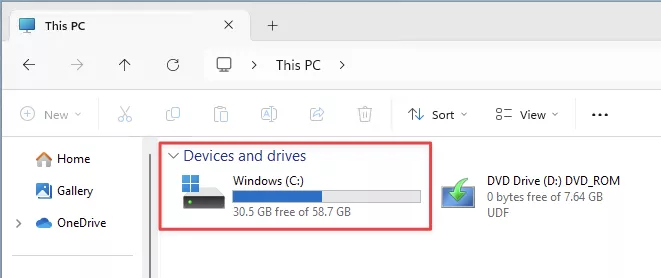
30 GB of Windows nowadays… that’s a lot.
Lastly, you can also use Packer or some other provisioning method to create the virtual machines on your host(s). This one works for me (till now).
Automate AVD Hybrid PowerShell
So, finally, the automate AVD Hybrid part. Below is logical overview of what we are doing here:
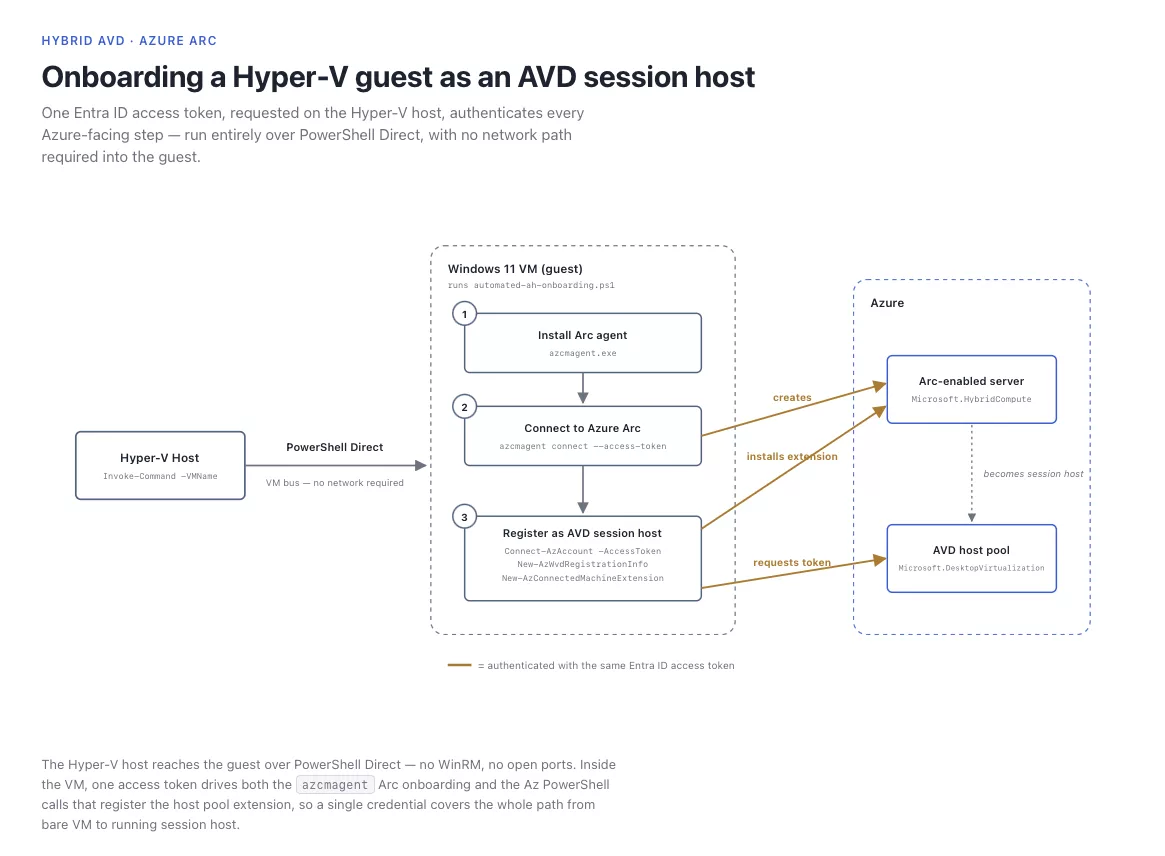
We use PowerShell direct from the Hyper V host. So, we are logged on to the Hyper V host only, we don’t need to be logged on to VM itself.
Firstly, we created the VM using the script, iso and answer file mentioned in the preparation part.
After that, we run the script. It’s available on GitHub.
We first need to get an Access Token. As we use this as our authentication method to install the Arc agent and the AVD agent. Use these commands to do so:
Connect-AzAccount
After that, to get the access token:
(Get-AzAccessToken -ResourceUrl "https://management.azure.com").token | ConvertFrom-SecureString -AsPlainText
As a result, you’ll get the access token:
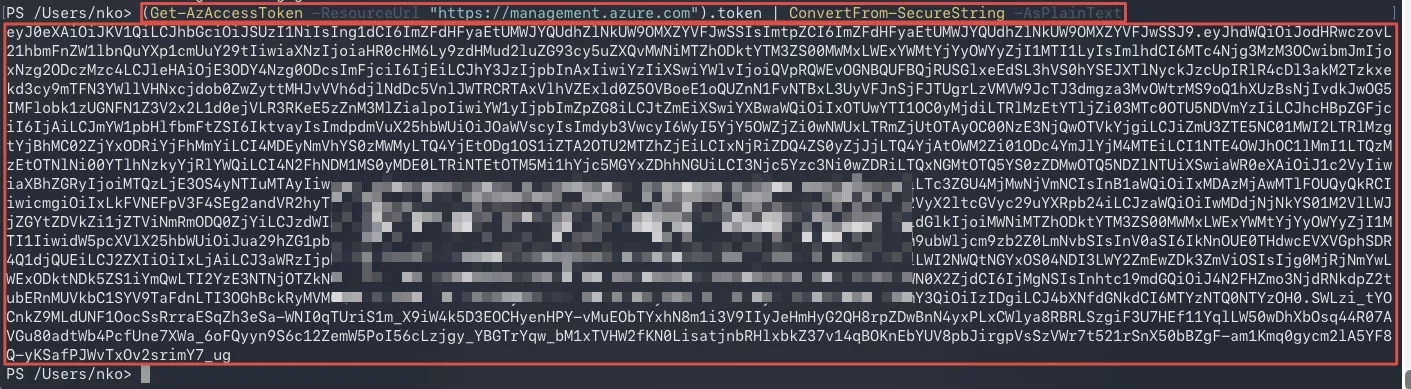
We need that as input for the commands you run on the Hyper V host. That are the following commands:
$vms = @(
    "VMNames"
)

$cred = Get-Credential   # guest admin creds

foreach ($vm in $vms) {

    $params = @{
        AccessToken               = "Your Access Token"
        AccountId                 = "Account Object Id SPN Id where the Access Token is from"
        TenantId                  = "Your Tenant Id"
        SubscriptionId            = "Your Subscription Id"
        HostPoolResourceGroupName = "Hostpool ResourceGroup Name"
        HostPoolName              = "Hostpool Name"
        Location                  = "Location"
    }

    Invoke-Command -VMName $vm -Credential $cred -ScriptBlock {
        param($ScriptText, $BoundParams)
        Set-ExecutionPolicy ByPass
        $path = Join-Path $env:TEMP 'automated-ah-onboarding.ps1'
        Set-Content -Path $path -Value $ScriptText -Encoding UTF8
        & $path @BoundParams
    } -ArgumentList (Get-Content .\automated-ah-onboarding.ps1 -Raw), $params
}
At the top of the script you specify the VM names you want to run the script on. After that, you enter the guest credentials for the local administrator of the VM with the get-credential command. And lastly, the parameters in the foreach loop to run the script on the VM’s.
For testing purposes I put the Arc VM resources and the hostpool in the same resource group. If you don’t want or have that, there is a separate parameter which allows you to set the VM resource group to another one.
Output of the script:
It first downloads a couple of modules required to do the AVD agent install and join it to the hostpool:
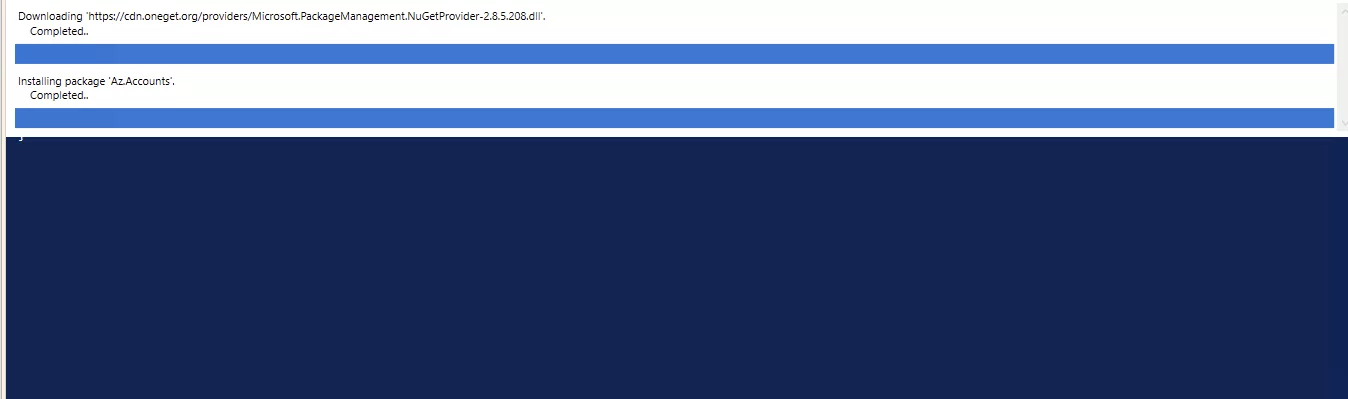
After that, it installs the Arc agent:
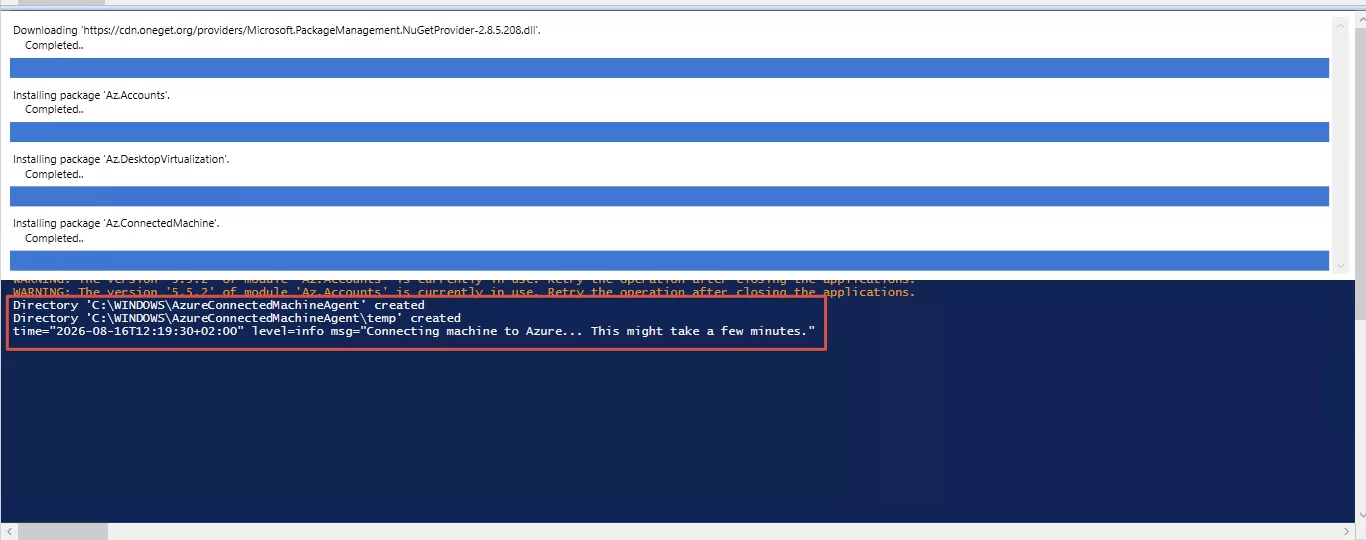
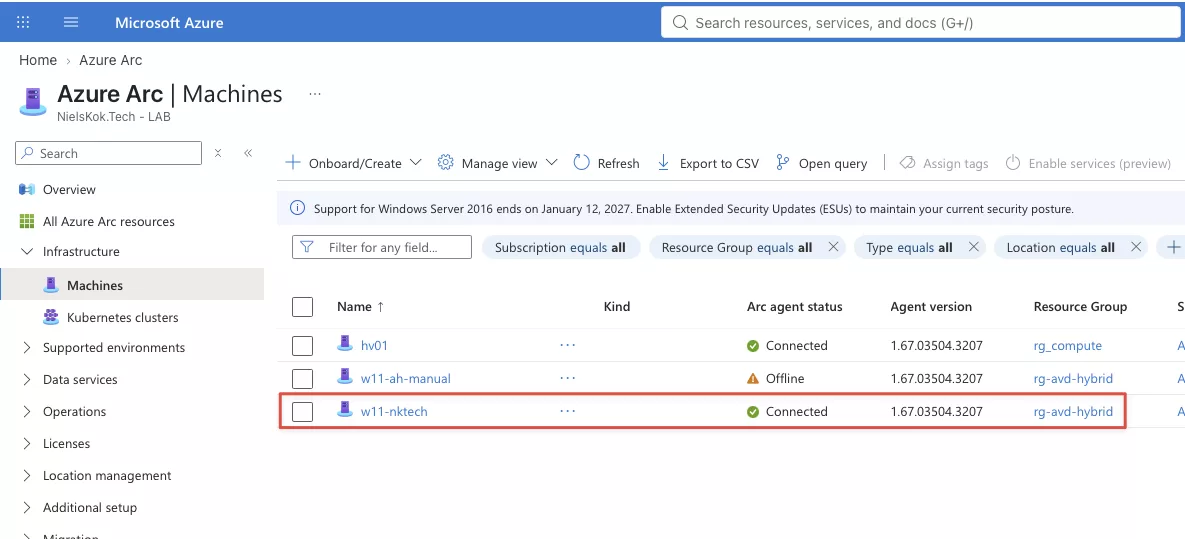
The machine appears in the Azure Arc machines in Azure:
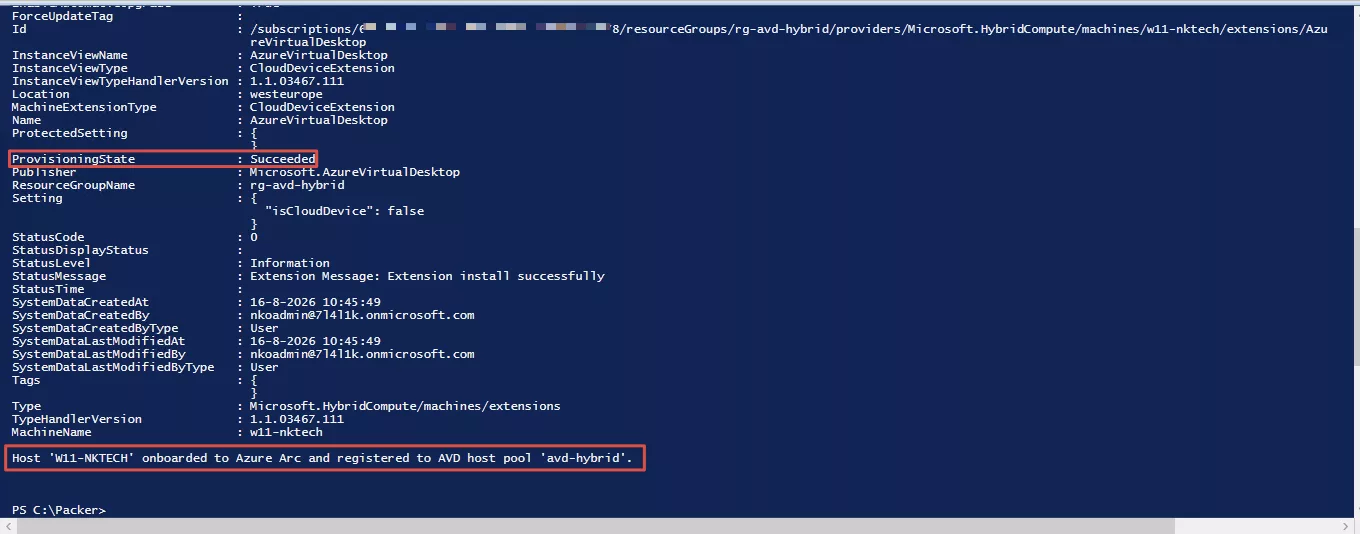
After that, the PowerShell window on the Hyper V host shows:
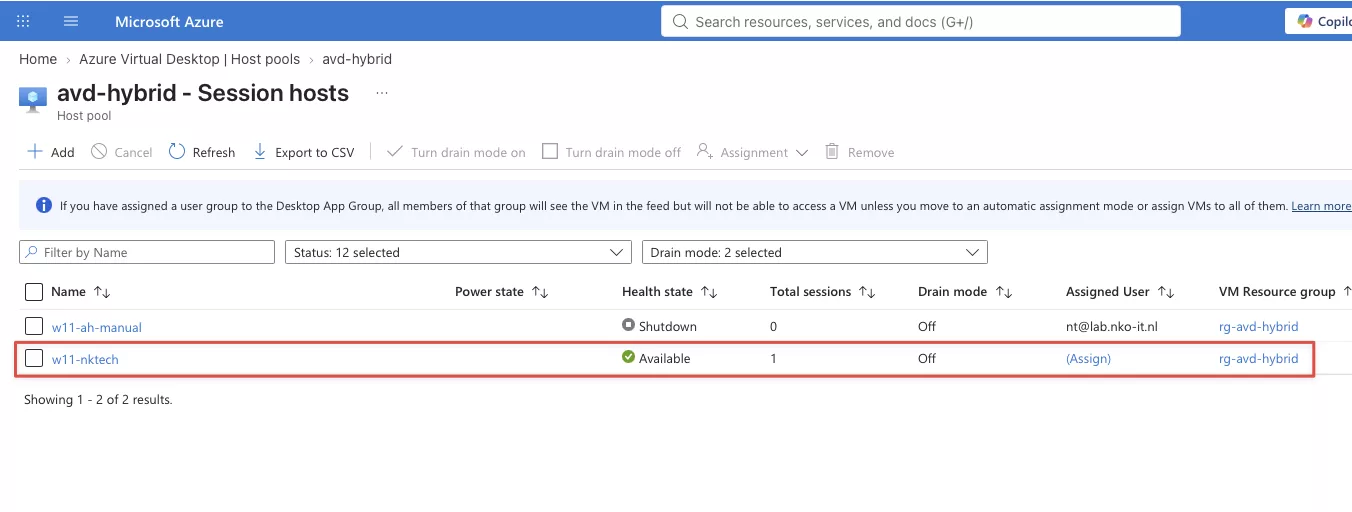
Lastly, the machine is available in the hostpool, ready to be used:
And, that concludes the post! Use the script if you’d like I had fun creating it. You can also use this script on other hypervisors since you only need another method run the script on the VM. For VMware I believe this would be PowerCLI. And PowerShell Remoting is also always an option.