Maybe you heard of this already but I found this hidden gem (at least for me) where you can easily get the latest Windows release in PowerShell. The module is written by Jose Schenardie. You can find it here in the PowerShell gallery.
So, what does it actually do? Well, let’s first install the module so I can show you.
Use this command to install the module:
Install-Module -Name WindowsReleaseInformation
After that, you have these commands available:
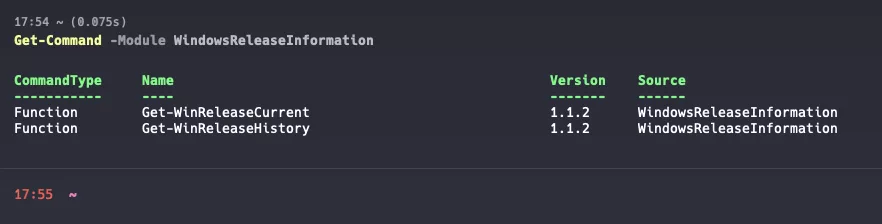
The Get-WinReleaseCurrent command returns this information:
Get-WinReleaseCurrent -OS 11 -Channel Servicing | ConvertFrom-Json | FT

And the Get-WinReleaseHistory (the most interesting one) returns this information:
Get-WinReleaseHistory -OS 11 -Version 25H2 | ConvertFrom-Json | FT
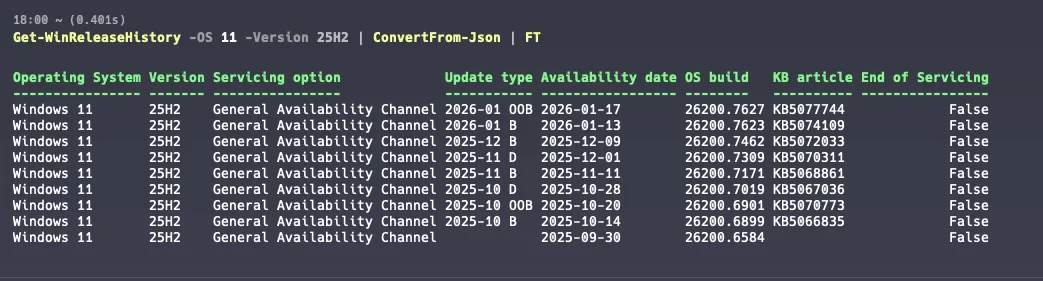
The brilliant thing is that this script/module actually parses this website:
https://docs.microsoft.com/en-us/windows/release-health/release-information
I hear you thinking when reading this post. Well what can I do with this information? Well, I am planning to automate my required build number in my compliance policy in Microsoft Intune.
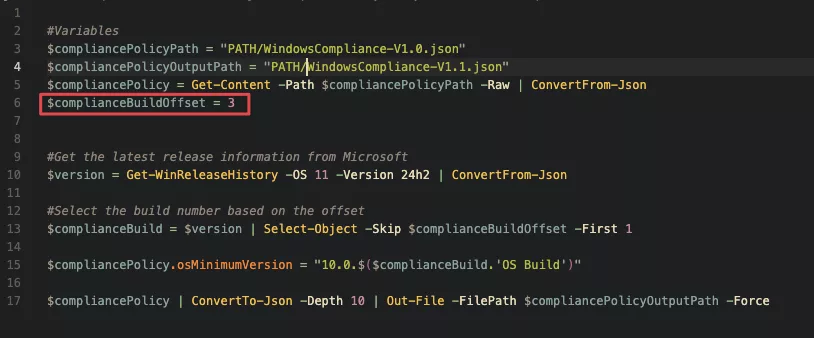
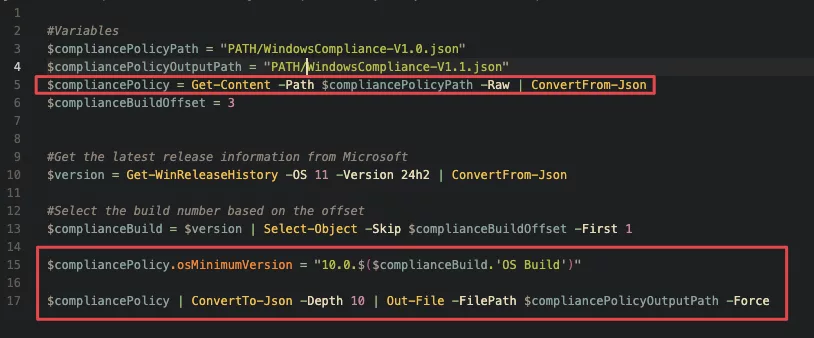
Let me give you an example script on how to do that. I assume that you already know how to export your compliance policy to a JSON file. We are replacing the required build number by comparing the current build and replacing it by another build with a configurable offset.
#Variables
$compliancePolicyPath = "PATH/WindowsCompliance-V1.0.json"
$compliancePolicyOutputPath = "PATH/WindowsCompliance-V1.1.json"
$compliancePolicy = Get-Content -Path $compliancePolicyPath -Raw | ConvertFrom-Json
$complianceBuildOffset = 3

#Get the latest release information from Microsoft
$version = Get-WinReleaseHistory -OS 11 -Version 24h2 | ConvertFrom-Json

#Select the build number based on the offset
$complianceBuild = $version | Select-Object -Skip $complianceBuildOffset -First 1

$compliancePolicy.osMinimumVersion = "10.0.$($complianceBuild.'OS Build')"

$compliancePolicy | ConvertTo-Json -Depth 10 | Out-File -FilePath $compliancePolicyOutputPath -Force
It selects the build based on the offset specified in the script:
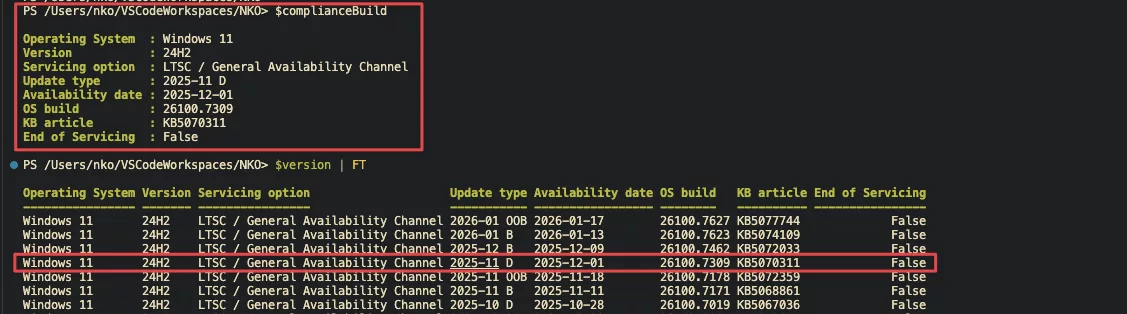
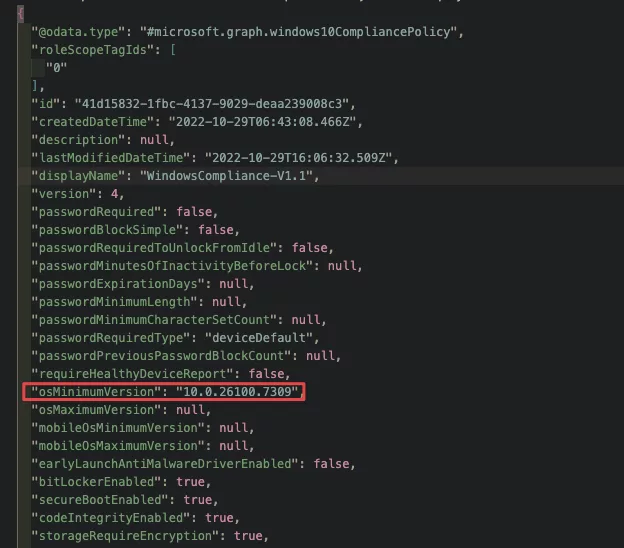
After that, it grabs the value in the original compliance policy and outputs it to a new file.
This is the contents of the new compliance policy:
You’ll have to upload the new compliance policy to Microsoft Intune and assign it to your ring model but I think this is very neat!