I wanted to automate the minimum version for a MacOS compliance policy in Microsoft Intune. There were a couple of requirements:
- The minimum version must be obtained online from a reputable source.
- An offset for the minimum version must be available. The default offset is set to 2. Meaning you may have 2 versions off the latest version.
- It must output a JSON file that can directly be imported to Graph API.
The Script
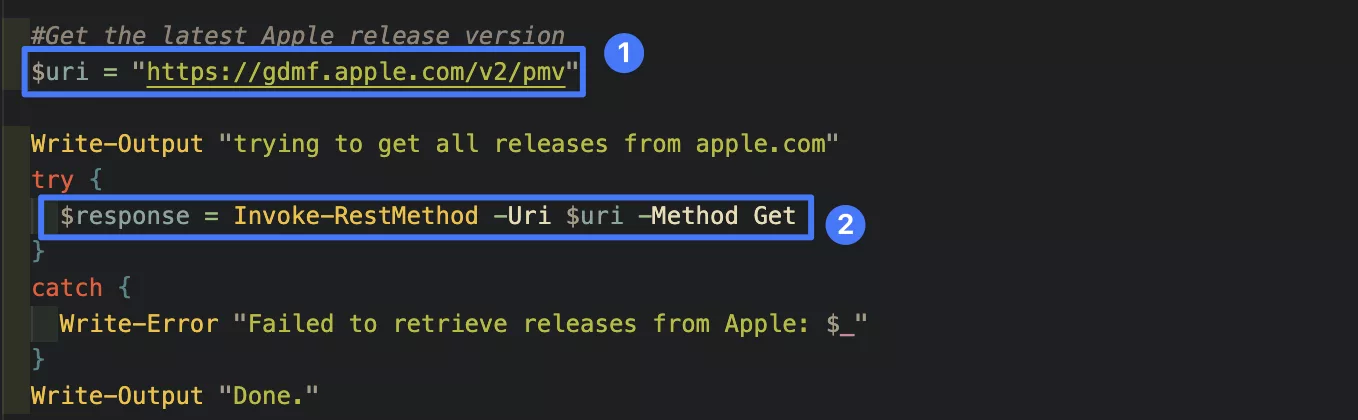
To fulfill the first requirement I searched for a reputable source. Of course, I ended up on reddit. Just kidding of course. But! Reddit lead me to reputable source. Turns out Apple publishes a JSON file with all versions and supported hardware. This is the reddit post. And, this is the url to the reputable source. It’s to bad https doesn’t work on this site. Nevertheless it is a subdomain of apple.com. I think that is trustworthy. Also, the reddit post is 3 years old and the link is still up and up to date. But, as always, your mileage may vary.
The script that I refer to later does a “get” request to this site to get all the information:

The second requirement is also quite easy. I have created a parameter with a default value of 2:

And, the code automatically selects the appropriate version. First the operating system and then the release:

Lastly, the JSON file as output. You specify an output folder and the code outputs the file there:
The parameter:

Next, the output folder. It uses the compliance version in the JSON file name:

Furthermore, I set a “default” compliance policy as a JSON body in the script:

You can always change the script to import a file and edit the “osMinimumVersion” or change the default of the JSON body.
The script is available on GitHub here.
Running the Script
When you run the script you only have to specify the output folder. The script defaults to the operating system macOS and the release offset 2. The JSON grabbed from apple also contains other operating systems. So, you could use it for those too but you have to edit the script to import a JSON file, for example.
This is the output when you run the script:

And this is the contents of the JSON file:

And you can use this code to import it directly in to Intune:
$Token = "YOUR Token"

$headers = @{ authorization = "Bearer $Token" }
$url = "https://graph.microsoft.com/beta/deviceManagement/deviceCompliancePolicies/"

$inputfile = "/Users/nko/Temp/macOS-compliance-version-15.4.1.json"
$Content = Get-Content -Path $inputfile | ConvertFrom-Json

$requestBodyObject = $Content
if (-not ($requestBodyObject.scheduledActionsForRule)) {
    $scheduledActionsForRule = @(
        @{
            ruleName                      = "PasswordRequired"
            scheduledActionConfigurations = @(
                @{
                    actionType             = "block"
                    gracePeriodHours       = 0
                    notificationTemplateId = ""
                }
            )
        }
    )
    $requestBodyObject | Add-Member -NotePropertyName scheduledActionsForRule -NotePropertyValue $scheduledActionsForRule

    # Update the request body reflecting the changes
    $requestBody = $requestBodyObject | ConvertTo-Json -Depth 100

    try {
        Invoke-WebRequest -uri $url -Method POST -Headers $headers -Body $requestBody -ContentType "application/json"
    }
    catch {
        Throw $_.Exception.Message
    }
}
You can grab an access token for the $Token variable from using F12 in browser when accessing Intune for example. Also, you can edit the script to use Connect-MgGraph for example.
Got forwarded this article. Have you looked at SOFA? https://github.com/macadmins/sofa
Hi Sergio,
This is way better indeed. I need to update this script 🙂
Regards,
Niels