I was at an event presenting about App Control and Applocker. Someone in the crowd said: “You can also built a script to import your Applocker policy in Microsoft Intune.” So, I thought yes! Let’s do that.
So, why did he say that a script would be much easier? Well, the Applocker experience in Microsoft Intune is rough. You first have to create the policy on a separate machine, a sequencer is preferred, export the policy to XML, then copy parts of the XML (rule collections) to each a separate OMA URI setting. You must do this 5 times over (EXE, MSI, Script, DLL, StoreApps). This is really error prone, time consuming and down right annoying. Jatin Makhija wrote a very detailed blog about this.
This script solves the annoying part. You still must create the Applocker policy on a separate machine and export it. If you find that the annoying part, well, maybe a script for another day or use Aaronlocker to automate that process for you.
Let’s dive in!
Prerequisites
So, firstly you must have a PowerShell module installed. It’s called Microsoft.Graph.Authentication. It’s used for authentication. The rest of the script is deploying the policy straight to the graph API. I use another method authentication in my module but that is for another day.
Also, you must have the exported Applocker policy file. You create this by exporting the policy like so:

As a result, you have an XML file that looks like this:
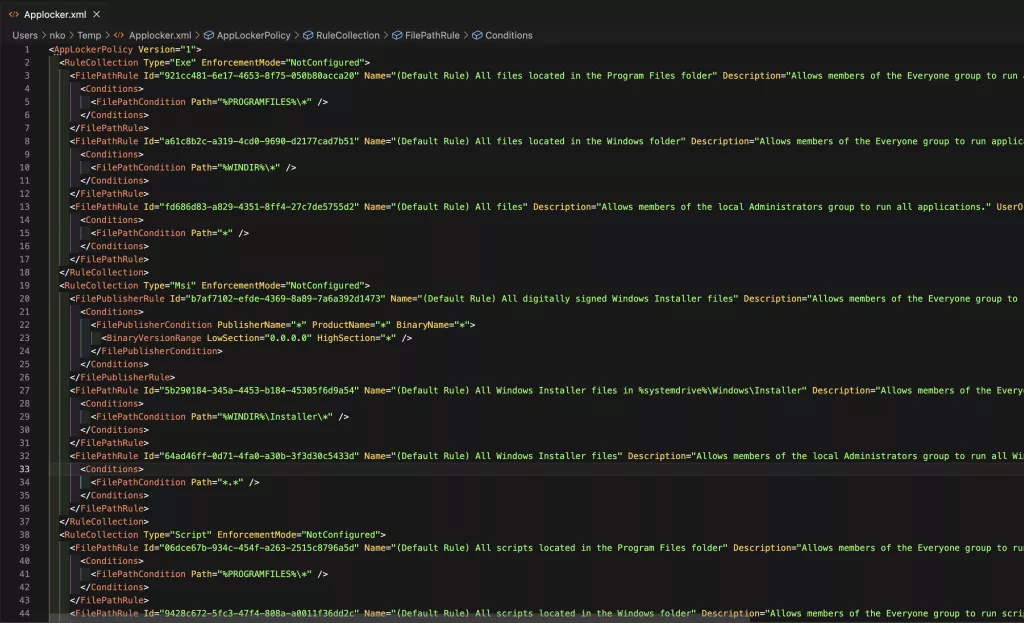
That is our input file for the script.
Running the Intune Import Applocker Policy Script
Firstly, you need the script. You can find it on my github here.
Save the script as a .ps1 file
After that, you can use the following code to run the script:
Import-ApplockerConfig.ps1 -Applockerxmlfile "C:\Path\To\Your\AppLockerConfig.xml" -ApplockerPolicyName "MyAppLockerPolicy"
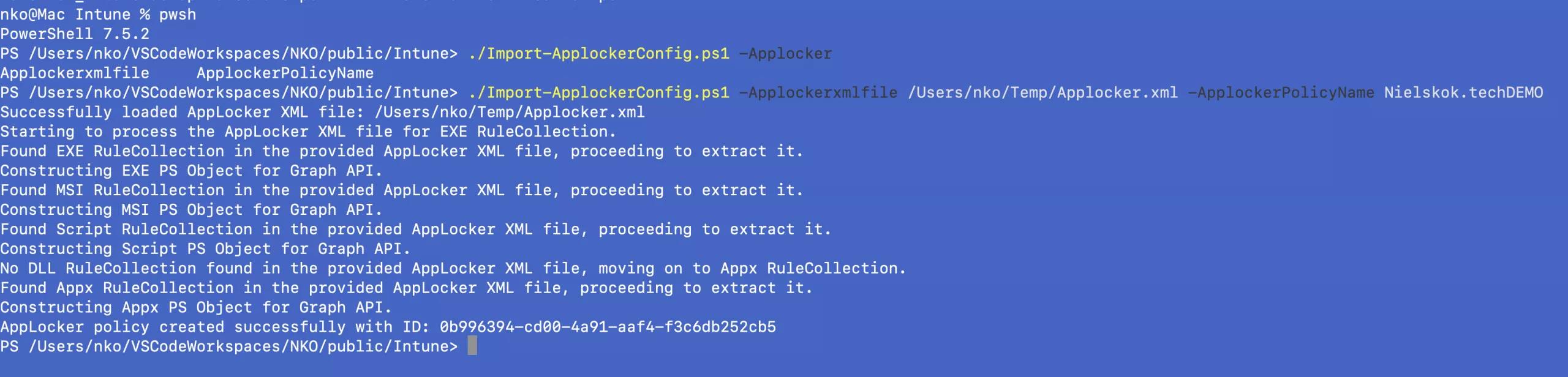
This is an example output:
(The paths in the example are different because I ran it on my mac)

You will get an authentication pop-up after all the rules have been parsed. In the example above you see that every type except for the DLL rules are present and parsed.
So, the script first loads the contents of the XML file. After that, it checks for each type (1) (EXE, MSI, Script, DLL, StoreApps) if it has rules configured for Applocker (2). Next, that configuration is formatted accordingly (3) to be added to the base object that is imported to Graph API (4).

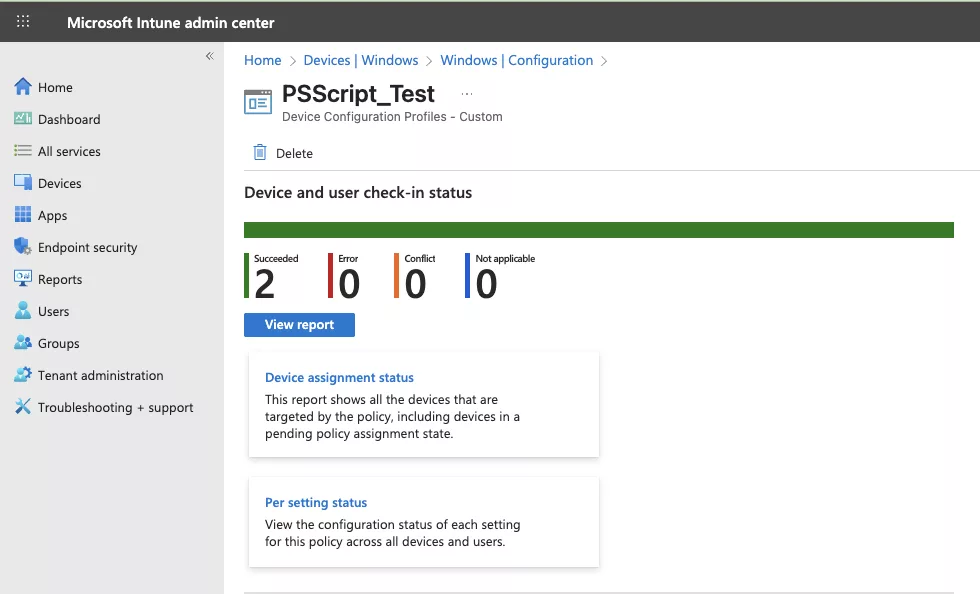
As a result, the policy is available in the Intune Portal:

I hope this helps some of you to create Applocker rules in Microsoft Intune more easily.
Other posts
Intune Drift Control with PowerShell
Install Hyper V and add current user to Hyper V administrators