I wrote a post a while ago about automating the creation of the Applocker policy for intune. You can find it here. This post is a prequel to that post. This post shows you how to automate your Applocker configuration which you can upload with the previous post to Microsoft Intune.
To automate the configuration for Applocker I use Aaronlocker. You can find it on github here. The repository is not updated in a while but the applocker feature also is not. So, this should be fine.
What is the goal here? Firstly, we create a script that installs 5 applications (Google Chrome, Adobe Reader, Notepad++, 7zip, and Zoom) via Chocolatey on a sequencing Windows 11 machine. After that, we package that script as a Win32App for Intune, and we run Aaronlocker on the sequencing machine to get the Applocker configuration. When we have the applocker configuration we use the script from the first post to upload it to Microsoft Intune. After that, done! Sounds easy right? Let’s dive in.
Preparing Applications
We first install the applications on the sequencing machine using this script (I got it from Peter van der Woude):
$ChocoPackages = @("googlechrome","adobereader","notepadplusplus.install","7zip.install","zoom")

$ChocoInstall = Join-Path ([System.Environment]::GetFolderPath("CommonApplicationData")) "Chocolatey\bin\choco.exe"

if(!(Test-Path $ChocoInstall)) {
     try {

         Invoke-Expression ((New-Object net.webclient).DownloadString('https://chocolatey.org/install.ps1')) -ErrorAction Stop
     }
     catch {
         Throw "Failed to install Chocolatey"
     }
}

foreach($Package in $ChocoPackages) {
     try {
         Invoke-Expression "cmd.exe /c $ChocoInstall Install $Package -y" -ErrorAction Stop
     }
     catch {
         Throw "Failed to install $Package"
     }
}
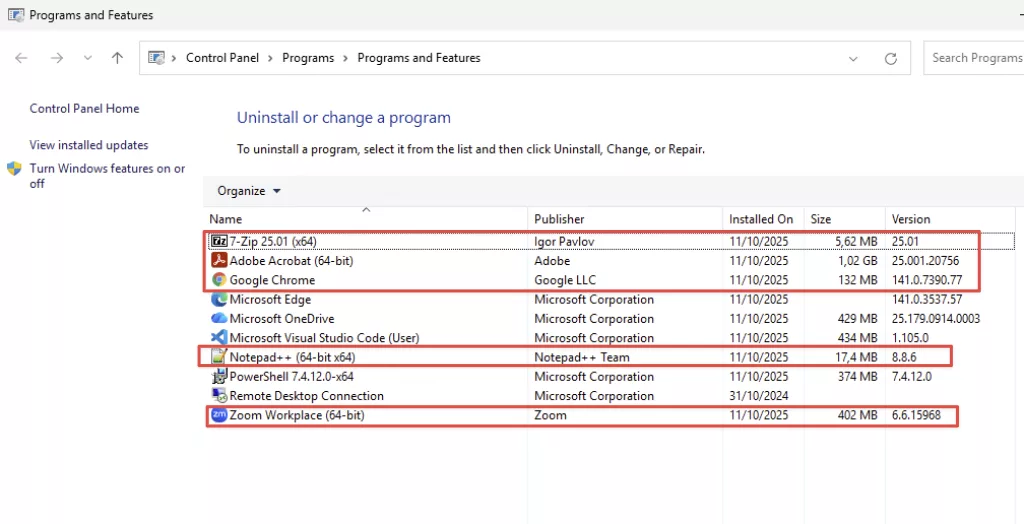
After running the script, these are the apps installed:
To create the Win32App package, we need a uninstall and detection script:
Uninstall script:
$ChocoPackages = @("googlechrome","adobereader","notepadplusplus.install","7zip.install","zoom")

$ChocoInstall = Join-Path ([System.Environment]::GetFolderPath("CommonApplicationData")) "Chocolatey\bin\choco.exe"

foreach($Package in $ChocoPackages) {
     try {
         Invoke-Expression "cmd.exe /c $ChocoInstall UnInstall $Package -y" -ErrorAction Stop
     }
     catch {
         Throw "Failed to install $Package"
     }
}
Detection script:
$ChocoPackages = @("googlechrome","adobereader","notepadplusplus.install","7zip.install","zoom")

$chocoList = choco list -i | Out-String

$apps = $chocoList -split "`n" |
    Where-Object {
        $_ -match '^[a-z0-9\.\-\+]+ \d' -and
        $_ -notmatch 'Chocolatey v|Validation|pending|packages installed|applications not managed'
    } |
    ForEach-Object { ($_ -split ' ')[0] }

foreach ($app in $ChocoPackages) {

    If ($apps -contains $app){
        Write-Output "App: $App is installed"
    }
    Else {
        Write-Output "App: $App is not installed"
        Exit 1
    }
}
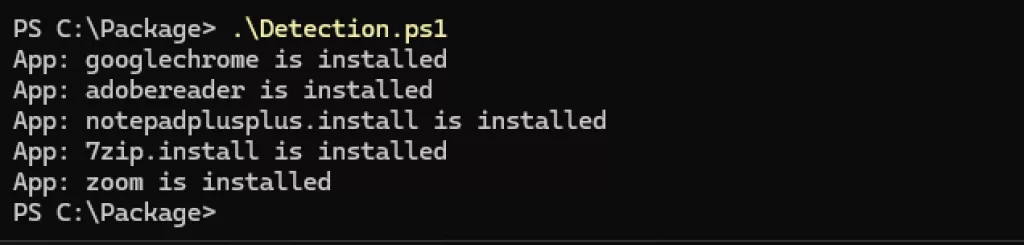
Output detection script:
Lastly, we create the Win32App using the Microsoft-Win32-Content-Prep-Tool. You find the instructions on Github but if you are reading this you probably don’t need these.
Use the .intunewin file to create a package in Microsoft Intune and deploy it to a test device.
Preparing Applocker Configuration
The next step is to create the Applocker configuration using the sequencing machine that we also used to create the Win32App package.
We use Aaronlocker to build the Applocker configuration. You can watch a video of it here.
This is the script I used to download Aaronlocker from github and run it on my sequencing machine to get the proper configuration which I can use to upload to Intune:
[CmdletBinding()]
param (
    [Parameter()]
    [string]
    $TempPath = "C:\Package"
)

Set-Location -Path $TempPath

if (Get-ChildItem .\AaronLocker-main -ErrorAction SilentlyContinue) {
    Write-Output "Aaronlocker already present, moving on"
}
else {
    Write-Output "Aaronlocker not present, downloading latest from Github"

    $zipUri = "https://github.com/Ruthhl3ss/AaronLocker/archive/refs/heads/main.zip"
    $zipPath = Join-Path $TempPath "Aaronlocker.zip"

    Invoke-WebRequest -Uri $zipUri -OutFile $zipPath
    Expand-Archive -Path $zipPath -DestinationPath $TempPath -Force
    Remove-Item $zipPath
}

try {
    .\AaronLocker-main\AaronLocker\Create-Policies.ps1
}
catch {
    Throw "Failed to create Aaronlocker Policies $_"
}
Note: I forked Aaronlocker and added these 2 files:
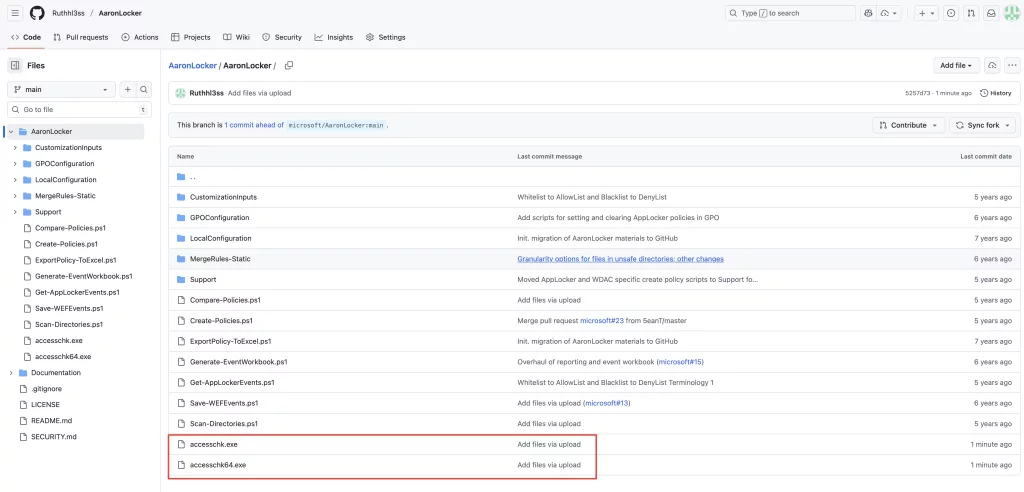
Because I got this error:
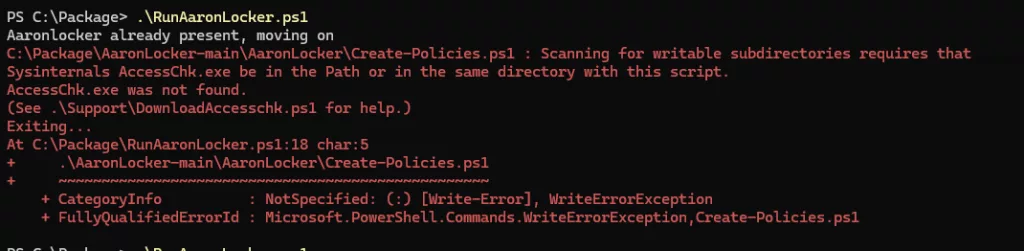
After that, you can just run this script. Of course, this is the most basic Aaronlocker config, if you want to add custom certificates or paths please fork the repository or create an offline version for you to use.
When you run this script the output Applocker configuration is here:

There is an audit and an enforce policy. Please be careful with the enforce policy. Always test it on just a couple of devices before you move to a larger part of your production environment.
Since this is my lab environment I just go full beans and grab the enforce policy.
After, that I use the script from my previous post and create the Applocker Intune profile:
./Import-ApplockerConfig.ps1 -Applockerxmlfile /Users/nko/Downloads/AppLockerRules-20251011-1809-Enforce.xml -ApplockerPolicyName AaronLocker-NielsKoktech-V1.0

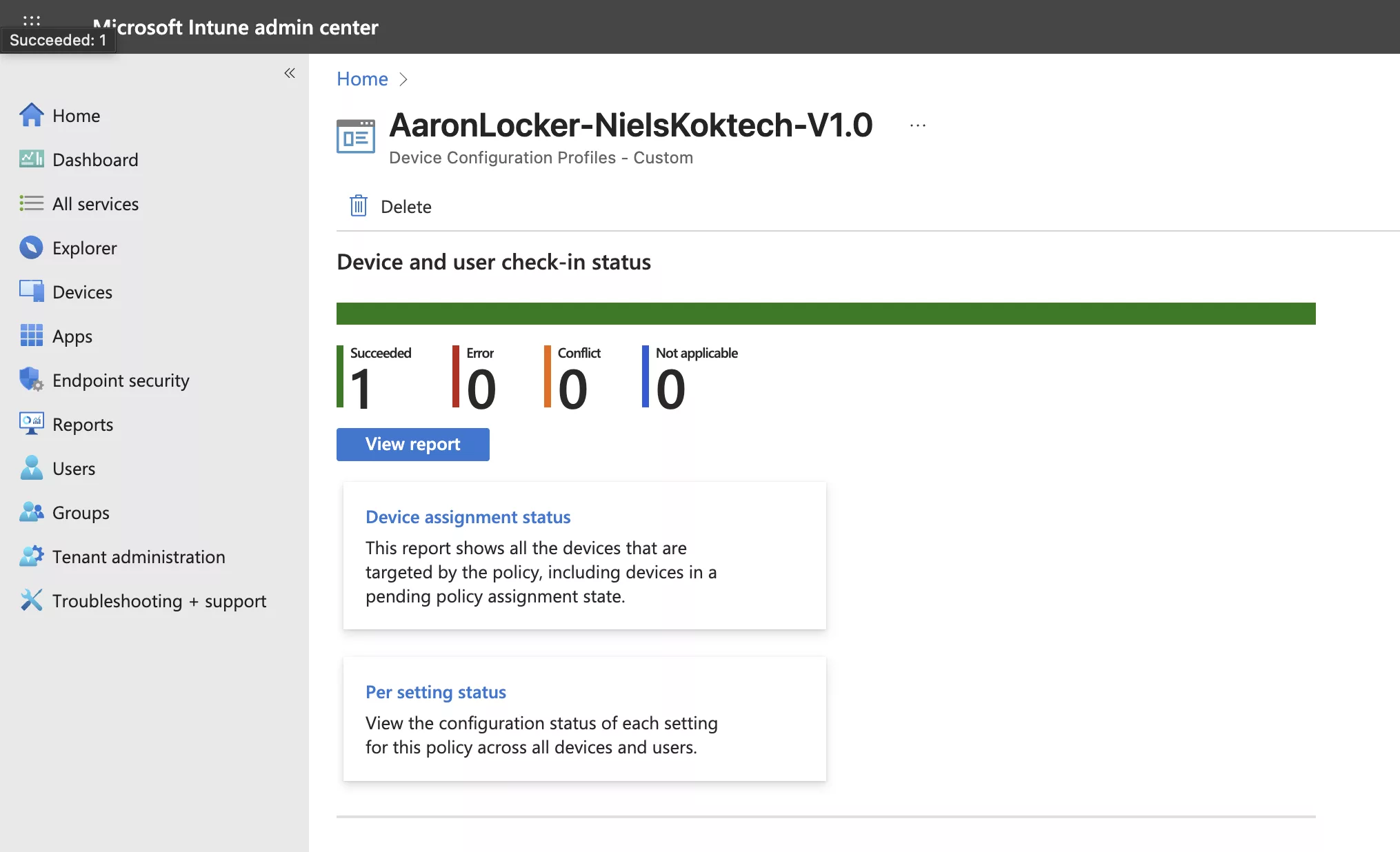
The script created this profile:
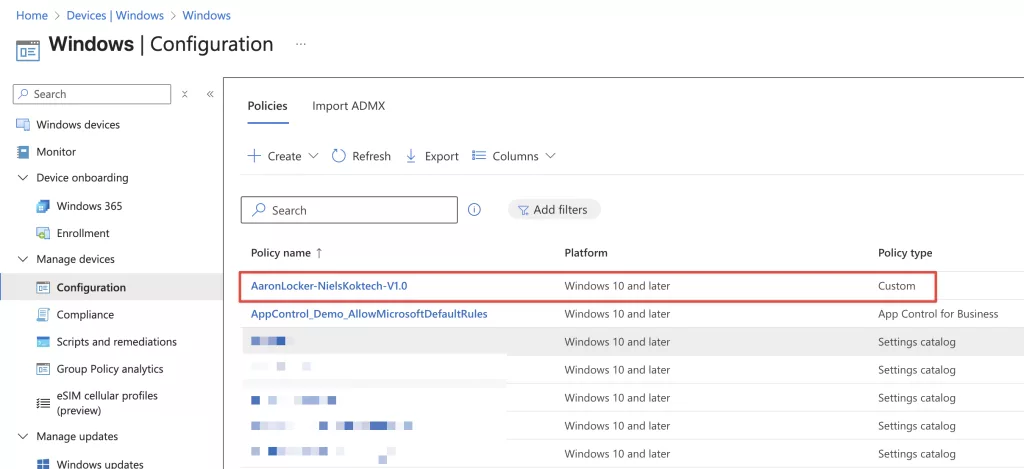
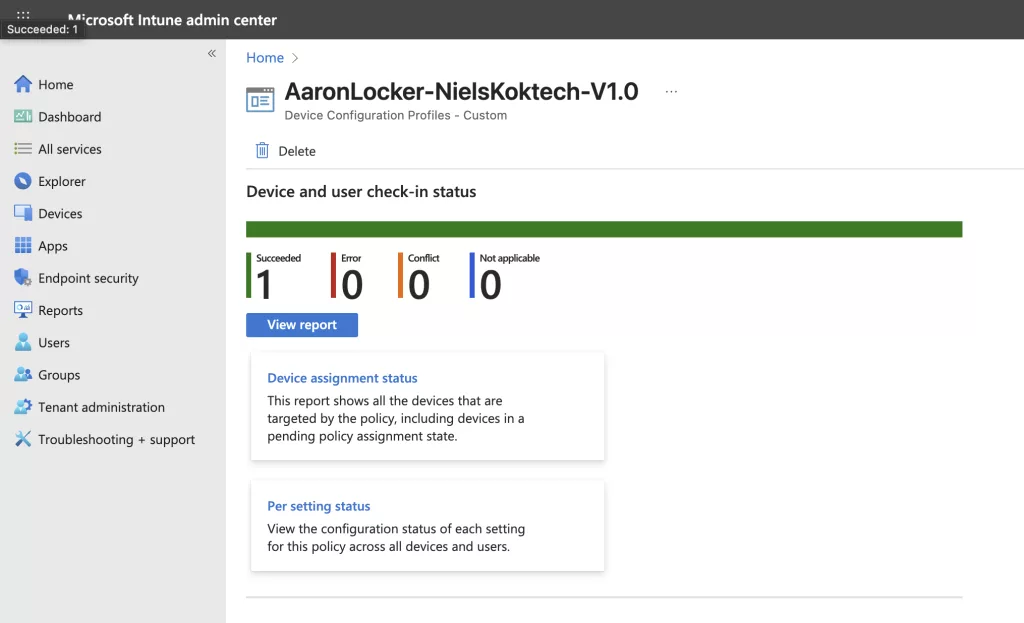
I assigned it to my test devices:
After that, I tried to install Mozilla Firefox on my test device and I got this message:
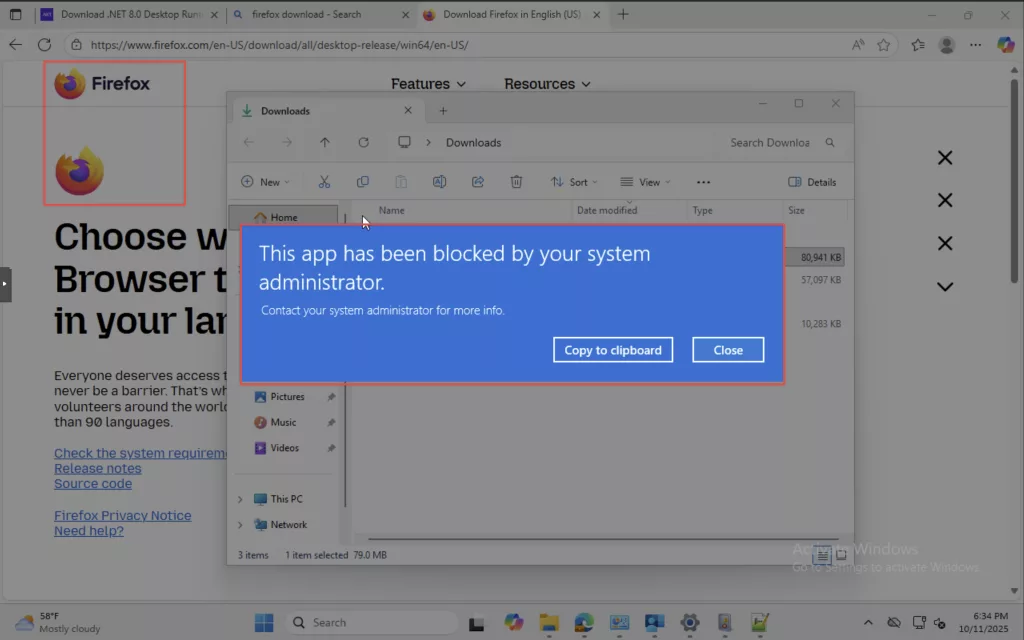
A succesful implementation of Applocker!
Conclusion
This post shows that it is relatively easy to create an Applocker configuration for Microsoft Intune. After that, my previous post allows you to create an Intune policy from that configuration quickly.
But, a caveat is that you install all applications on a sequencing machine then run the script that checks all files and folders and creates an Applocker configuration.
Well, since you have all install sources probably stored on a storage account or on a file share somewhere that got me thinking about a next post to this series.
The next post will feature a DevOps pipeline that installs all applications from your installation source on a Windows 11 VM, generate the Applocker configuration and upload that configuration as an Intune policy. That way when you make changes to your applications you are able to automatically generate an Applocker configuration that matches your application landscape.
See you at the next one!