This blog post is creating an Azure DevOps library group via Powershell. I like to use the library group feature within Azure DevOps but there is one big downside. The library group doesn’t have version history. When someone in your team makes a change to the library group, the previous version is not available,
So, how can we solve this issue? Exactly, create the library group via Powershell/Rest API. If we store this code in a git repository, we have version history and can use the feature just like all the other features within Azure DevOps. I got this idea from Patrick van den Born, check out his blog also!
The first blog only features the creation of the library group itself. I will dedicate another to creating the variables.
Preparation
Before we can run the script we need to grab some information from Azure DevOps. Firstly, we need a Personal Access Token. Log on to Azure DevOps, click user settings, and click Personal Access Tokens:

Click on New Token:

Name the token and pick an expiration date:
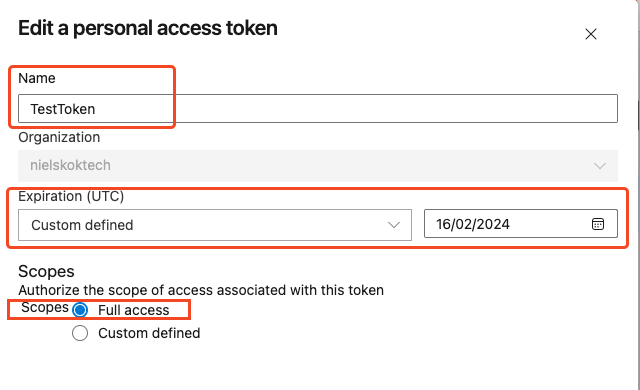
Note: I have picked full access. Don’t do this in production.
Click on Create and save the token to a preferred method.
Next, we need to identify the Azure DevOps project ID which we want to create the library group for.
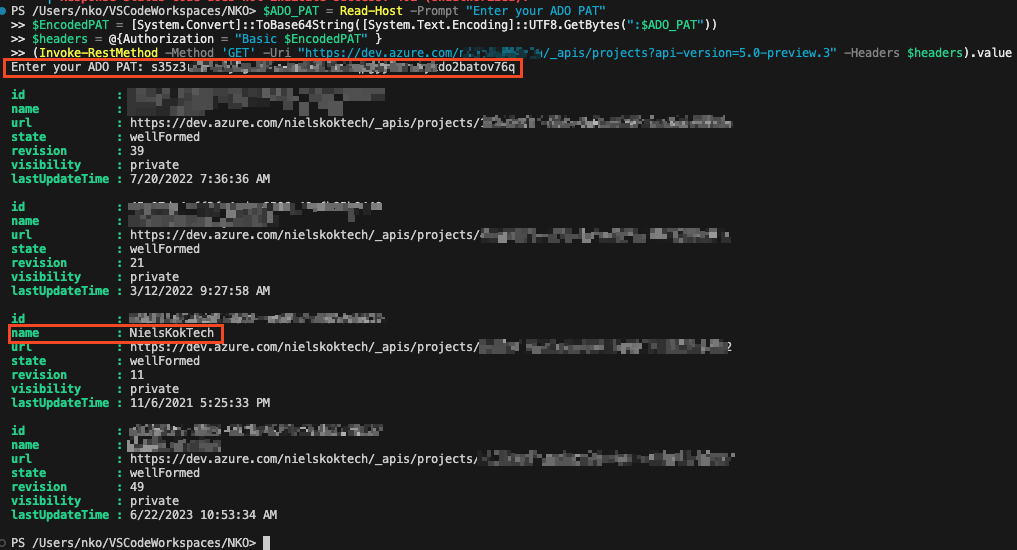
You can do so by using this code snippet:
$ADO_PAT = Read-Host -Prompt "Enter your ADO PAT"
$EncodedPAT = [System.Convert]::ToBase64String([System.Text.Encoding]::UTF8.GetBytes(":$ADO_PAT"))
$headers = @{Authorization = "Basic $EncodedPAT" }
(Invoke-RestMethod -Method 'GET' -Uri "https://dev.azure.com/ORGANIZATIONNAME/_apis/projects?api-version=5.0-preview.3" -Headers $headers).value
NOTE: Change the ORGANIZATIONNAME in the URI.
Run the script, it will first ask you for the Personal Access Token created in the first step:

Save the ID to a notepad of some sort, we need this to create the group.
Script Azure DevOps Library Group Powershell
Firstly, save this script as a ps1 file:
[CmdletBinding()]
param (
    [Parameter()][string]$ADO_Organization,
    [Parameter()][string]$ADO_Project,
    [Parameter()][string]$ADO_Project_Id,
    [Parameter()][string]$ADO_VariableGroup_Name,
    [Parameter()][string]$ADO_PAT
)

$EncodedPAT = [System.Convert]::ToBase64String([System.Text.Encoding]::UTF8.GetBytes(":$ADO_PAT"))
$headers = @{Authorization = "Basic $EncodedPAT" }


$Uri = "https://dev.azure.com/$($ADO_Organization)/$($ADO_Project)/_apis/distributedtask/variablegroups?api-version=7.0"

$Json = @"
{
    "name": "$ADO_VariableGroup_Name",
    "type": "Vsts",
    "variables": {
        "ManagedByAzureDevOps": {
        "value": "DontChangeValuesHere"
        }
    },
    "variableGroupProjectReferences": [
        {
            "name" : "$ADO_VariableGroup_Name",
            "description" : "This group is managed via Code, dont changed the values",
            "projectReference": {
                "id":"$($ADO_Project_Id)",
                "name": "$($ADO_Project)"
            }
        }
    ]
}
"@


try {
    Invoke-RestMethod -Method 'POST' -Uri $Uri -Headers $headers -Body $Json -ContentType 'application/json'
}
catch {
    Write-Error "Error creating ADO variable group"
    Write-Error $_.Exception.Message
}
After that, use this code snippet to run the file:
$ADO_PAT = Read-Host -Prompt "Enter your ADO PAT"
$ADO_Organization = "nielskoktech"
$ADO_Project = "nielskoktech"
$ADO_Project_Id = "YOUR PROJECT ID FROM STEP 2"
$ADO_VariableGroup_Name = "NielsKokTechExample"

.\NielsKokTechTest\AzureDevOps\CreateLibraryGroup.ps1 -ADO_Organization $ADO_Organization `
            -ADO_Project $ADO_Project `
            -ADO_PAT $ADO_PAT `
            -ADO_VariableGroup_Name $ADO_VariableGroup_Name `
            -ADO_Project_Id $ADO_Project_Id
As a result, the group is created:


HI
Could i use the same way just to update a valued in the libery ?
Hi David,
You can edit the value this way. But I recently discovered that there is a powershell module for this that is way easier… Haha
It is called VSTeams: https://www.powershellgallery.com/packages/VSTeam/7.2.0
Thanks,
Niels